
We are continuing our series on submitting short works to contests, anthologies, and magazines. Today’s focus is on contests.
 For the most part, the requirements are basically the same from contest to contest, with minor differences. Most contests charge a submission fee but have a cash prize if your work is chosen. It doesn’t matter how brilliant your story is; if you don’t follow their guidelines for submission, you will have wasted your money. Non-conforming work will not be read, so follow their guidelines!
To make sure your work conforms to the intended recipient’s requirements, go to the contest website and read the standards they have laid out.
You must get your paragraphs and line spacing right, so you must know how to use the tools that come with your word processing program. These handy tools exist to make your documents look as professional as possible.
First, you must open the toolbox.
Open your document and make sure you are on the home tab. I use MS Word, but most word processing programs (Open Office, Google Docs) follow a similar process as my program does. Running across the top of the page is the ribbon, which is your toolbox.
Everything you need to create a manuscript is there, waiting for you to learn to use it. A tiny little v in the far right-hand corner is the arrow for expanding or hiding the ribbon. We will expand the ribbon, giving us access to all the necessary tools.
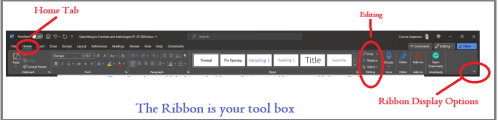
I use dark mode for all my work as light mode hurts my eyes. That is why the above screenshot of my ribbon is dark when yours might be shades of white, blue, and gray. You can discover more about “dark mode” here: Using Dark Mode in Windows 11 | Windows Learning Center (microsoft.com)
Now, we must select the font. As I said before, I use Microsoft WORD. Like every other word-processing program, it has many fancy fonts to choose from and a variety of sizes.
 You don’t want fancy. Stick with the industry standard fonts: Times New Roman (or rarely Courier) in 12 pt. These are called ‘Serif’ fonts and have little extensions that make letters easier to read when strung together to form words.
- Check the contest page for their guidelines. You will find they likely want submissions formatted in Times or Times New Roman .12 font size.
If you are using MS WORD, here are a few simple instructions: to change your fonts, open your manuscript document, and Click on the tab marked ‘Home.’ In the upper right-hand corner of the ribbon, across the top of the page, is the “Editing” group, located at the right of the Styles group. Note: be sure you have Editing and NOT Editor. (The Editor menu has different functions that we’ll cover another time.)
select> select all. This will highlight the entire manuscript.
With the manuscript still highlighted, go to the font group on the left-hand end of the ribbon. The default font, or predesigned setting, will probably say ‘Calibri (Body)’ and the size will be .11. Scroll down to Times New Roman and click on it to change the font for the entire manuscript.
- If you have clicked on the wrong font, it can be undone by clicking the back arrow (upper left-hand corner).
Once you are satisfied with your changes, click save.
Now, we are going to format our paragraphs and line spacing. Editors, publishers, and contests want their copies double-spaced so they can insert comments in the reviewing panel as needed. Having it double-spaced allows for longer comments and is easier for an editor to read.
NEVER use the tab key or the space bar to indent your paragraphs. Too many extra spaces in an electronic document cause the formatting to fail when converted to the various electronic publishing formats.
- Keep extra spaces to a minimum—use only one space between sentences!
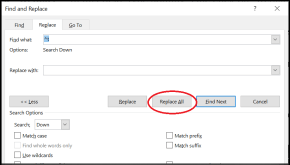 To remove tabs from a manuscript in MS Word or most other word-processing programs, open the “Find” box (right side of the ribbon on the home tab). In the “Find” field, type in ^t. (Caret + lowercase t) (press the alt key 94 to make ^ and key the t). This only works if you have a ten-key (number pad) at the right side of your keyboard. ^t.
Then click “Replace.” In this field, type nothing. Click once on “Replace all,” and it will remove every tab. (If you have no number pad, you must do this by hand, using the backspace to remove the tabs from EVERY paragraph.)
That will leave you with no indents whatsoever. Your manuscript will temporarily look like a wall of words, but you will resolve that.
Once the tabs are all removed, use the following instructions to format paragraphs.
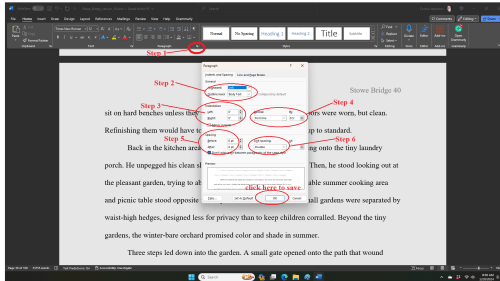 FIRST: SELECT ALL. This will highlight your entire manuscript.
Step 1: On the Home tab, look in the group labeled ‘Paragraph.’ On the lower right-hand side of that group is a small grey square. Click on it. A pop-out menu will appear, which is where you format your paragraphs.
Step 2: On the indents and spacing menu: Use standard alignment align LEFT. We use this format because we are not looking at a finished product here. Do not justify the text. In justified text, the spaces between words and letters (known as “tracking”) are stretched or compressed. Justified text gives you straight margins on both sides, but this type of alignment only comes into play when a manuscript is published.
Step 3: Indentation: leave that alone or reset both numbers to ‘0’ if you have inadvertently altered it.
Step 4: Where it says ‘Special,’ select ‘first line on the dropdown menu.’ On the ‘By’ menu, select ‘0.5.’ (Some publishers specify a different number, 0.3 or 0.2, but 0.5 is standard.)
Step 5: ‘Spacing’: set both before and after to ‘0.’
Step 6: ‘Line Spacing’: set to ‘double.’
To summarize, the standard paragraph format has:
- marginsof 1 inch all the way around
- indented paragraphswith no extra space between
- double-spacedtext
- Align Left. This is critical.
Next, we want to add page numbers. Open the “insert” tab and click on “page number.” This opens a new menu. We will add the page numbers using the small dropdown menu.
- Choose top of page, plain number, far right hand. You can add the title there too.
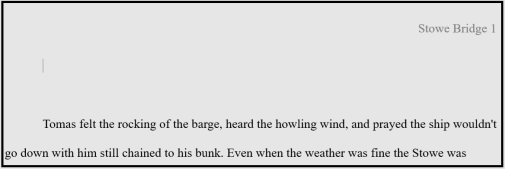
NOTE: Most contests do NOT want you to insert identifying information, such as your name, on the manuscript you submit. The email and submissions portal will have your manuscript and title linked to your personal information, so don’t worry.
Editors and readers at contests receive an overwhelming number of manuscripts. They don’t have time to deal with authors who can’t be bothered to conform to the submission guidelines.
On Wednesday, we’ll talk about headers and formatting to submit to publishers of anthologies and magazines.


 Life in the Realm of Fantasy
A very helpful post. Thank you. I’m keeping this one.
LikeLiked by 1 person
Hello V! So glad you found something useful here today.
LikeLiked by 1 person