Monthly Archives: November 2013

Phil’s Cosmic Roulette Wheel

Photograph courtesy of RL5 Photography via www.spaceneedle.com

Photograph courtesy of RL5 Photography via http://www.spaceneedle.com

Today I want to discuss Phil’s Cosmic Roulette Wheel. Perhaps it’s fate, perhaps it’s the universe–whatever it is, it steers us down the path to perdition, and throws the almighty wrench in the works just when everything was going so well. In my world of Neveyah where the Tower of Bones series is set, Gods have a direct hand in the action.

The strange part was naming them. I’ve a friend, a Leo, named Phil. Phil is a lion among men and I thought, why not name a god Phil?

It turns out that if you write fantasy you  should probably give your  gods names that evoke omnipotent power. Apparently Phil is a bit too neighborly for a good ‘god-name,’ go figure. So I have opted for less comfortable names for my gods.

Phil is a longtime friend of mine, a man who will argue the opposite side of any topic you choose, and he will do it with passion and will even have some evidence to back his position.  He also enjoys the occasional rant on Facebook, but hey–who doesn’t? I figure he should get a blog and rant to his heart’s content, but what do I know.

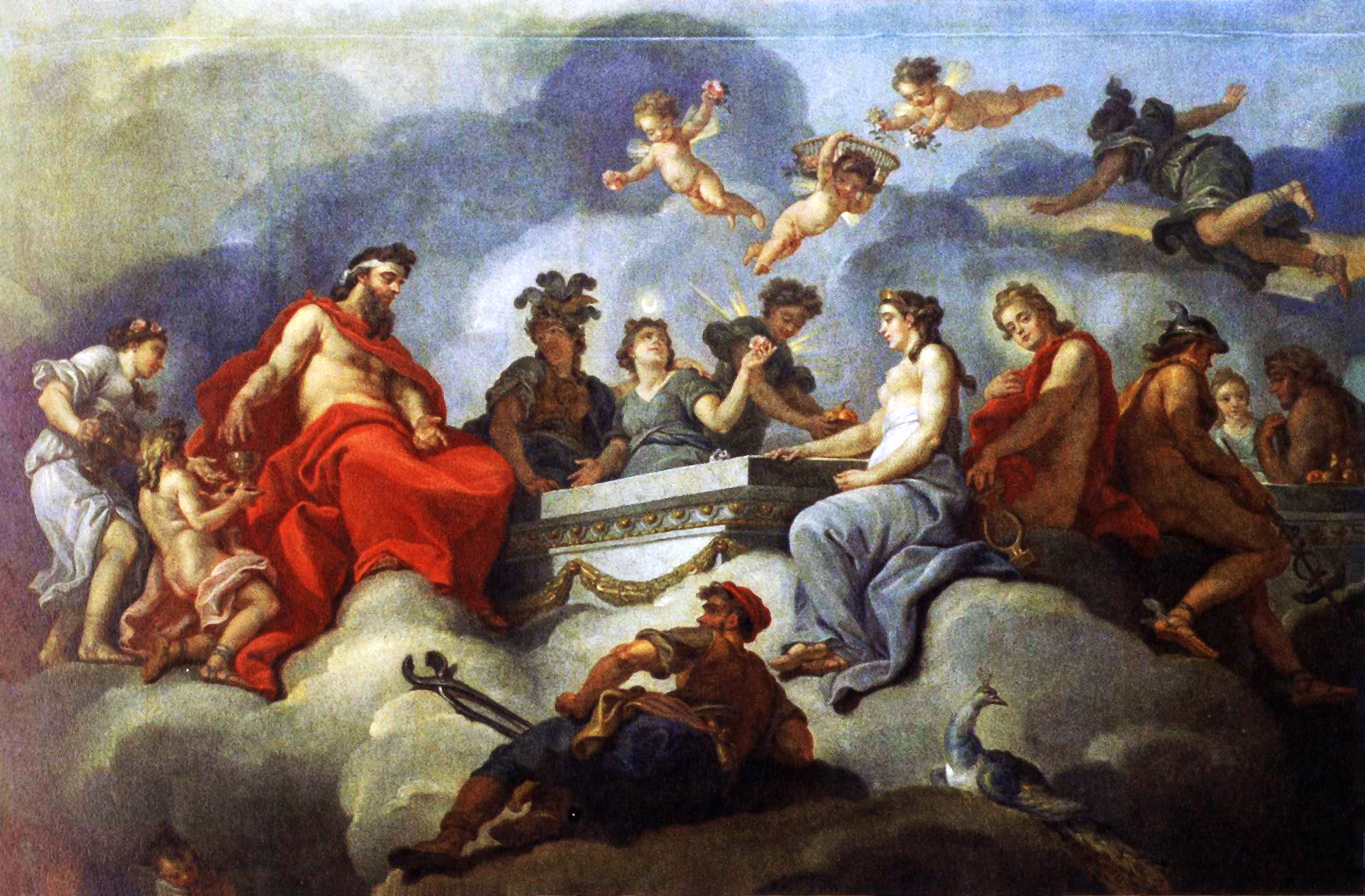
Die_Einführung_des_Ganymed_in_den_Olymp_(van_Loo)_-_AusschnittAny way, Phil was on a rant about something, and I forget exactly what it was, but the upshot was he is a bit of an atheist.

Well, that takes all the fun out of blaming the gods for everything that’s wrong in your life!

But I’m not here to argue about religion. Religion is like sex and politics–everyone has their own version, and other folks don’t want to hear about how great it is.

Phil got me to thinking about how events seem to occur, driving us to a specific moment in time. There is a sense of destination in the way events occur, as if the only place you could have found yourself, no matter how you tried to avoid it, was at that stop light.

Roulette_-_detailThe upshot of all of this is the epiphany I had– the realization that Phil the God (who is an atheist) uses this giant cosmic roulette wheel to determine the fates of each denizen of his universe.  There he is, sitting in his heavenly bathrobe, watching movies on netflix and spinning his cosmic roulette wheel.

Now I know why things just seem to happen so randomly. Phil’s Cosmic Roulette Wheel is spinning and where it stops, no one knows….

2 Comments

Filed under Adventure, Books, Fantasy, Humor, Literature, mythology, Uncategorized, writer, writing

The Dilemma

GRAELENT AND THE FAIRY-WOMAN - Illustration from Legends & Romances of Brittany by Lewis Spence, illustrated by W. Otway Cannell.Romantic love and passion are two things that make up the bulk of many a book I’ve begun to read and then set aside over the past few years. Truthfully, romance novels don’t interest me the way adventure novels do–if they are seasoned well with a bit of romance. Graphic romance with no plot is porn, and I think we should just call it that and be done with it. Adventure with no romance is a travelogue detailing a rough trip, but nothing to write home about.

Dilemma.

In a novel, one without the other just does not work. Words splashed on a page for their shock value have been done and over-done, so for me it’s important to keep myself writing for the quality of the tale. If I do it right, I will intrigue the reader and challenge them, making them want to read more.

Adventure must have some sort of romance to drive the plot forward, some unattainable goal whether it is love or an object. I like to look back at history and see what it was about some tales that have kept the interest of readers, not just for years, but for centuries. What do these tales embody that new works should also have, to make them timeless?

Let’s examine the Arthurian Legend. From the website, www.arthurian-legend.com.

I quote:

Illustration by H.J. Ford for Andrew Lang's Tales of Romance, 1919. Arthur meets the Lady of the Lake and gets the Sword Excalibur“The legend of King Arthur and the knights of the Round Table is the most powerful and enduring in the western world. King Arthur, Guinevere, and Sir Lancelot did not really exist, but their names conjure up a romantic image of gallant knights in shining armour, elegant ladies in medieval castles, heroic quests for the Holy Grail in a world of honour and romance, and the court of Camelot at the centre of a royal and mystical Britain.”

There we have the essence of what constitutes a timeless tale: Powerful people doing heroic deeds, and finding a bit of romance along the way. Set them in intriguing surroundings and dress them in metal or velvet (or both) and voila! Now all you must do is cue the magic–bring on the wise old sorcerer.

Hey, it worked for J.K. Rowling!

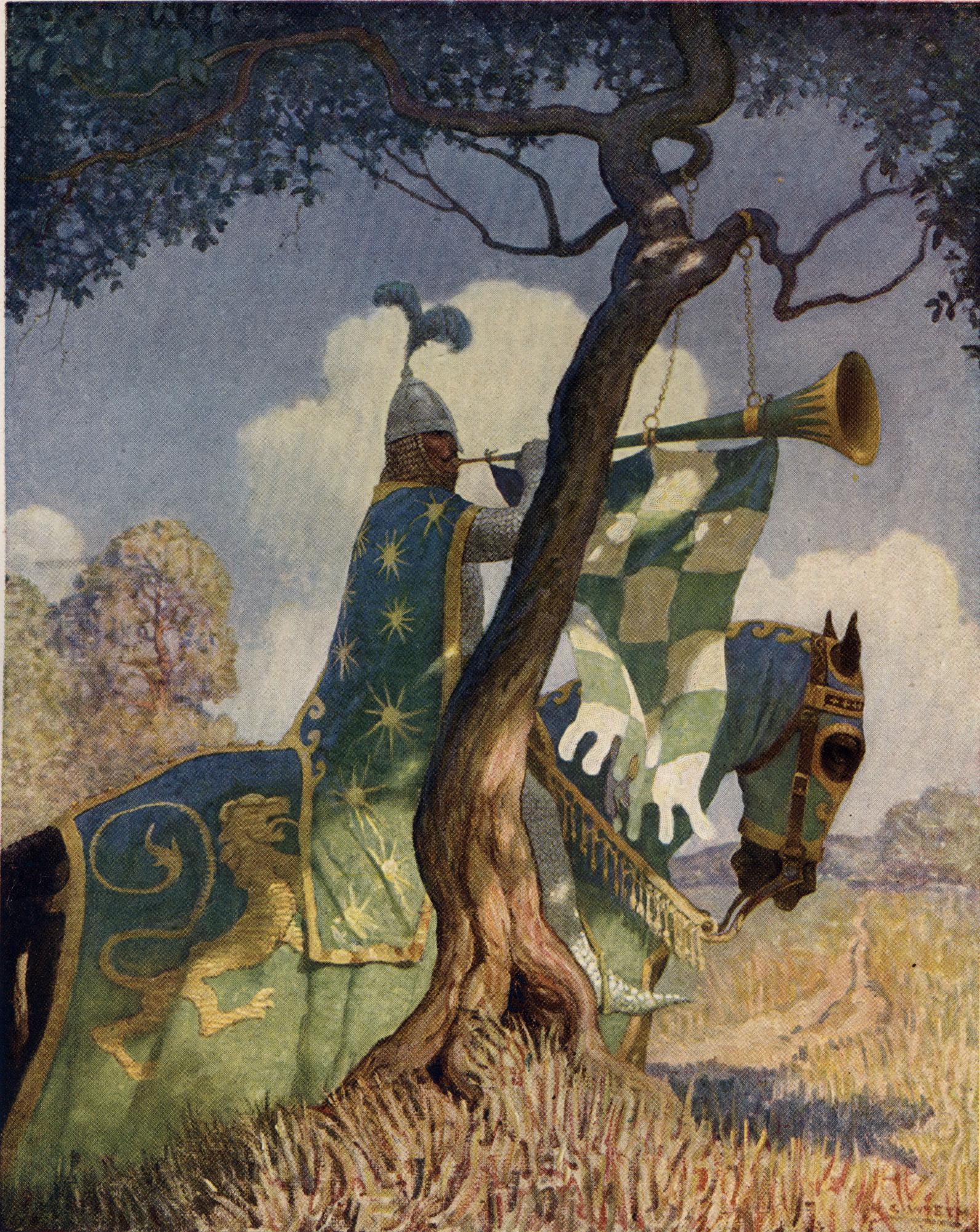
Boys_King_Arthur_-_N._C._Wyeth_-_p82I do a lot of reading, and if I am not reading, I am writing. My hope is that at some point in every tale I write, my readers will find themselves completely involved in the tale to the exclusion of the world around them. If that happens, then I have had an impact on my reader, the same way as Anne McCaffrey, Tad Williams, and Mercedes Lackey have each impacted me.

Someday I will have written that tale.

But if I do that,  I’ll have to sustain the momentum…keep writing good stuff only and forget writing crap….but crap is so much easier to write.

Unfortunately we’re only as good as our next book.

*Doh*

4 Comments

Filed under Battles, Books, Dragons, Fantasy, knights, Literature, mythology, Uncategorized, writer, writing

Courting the Muse

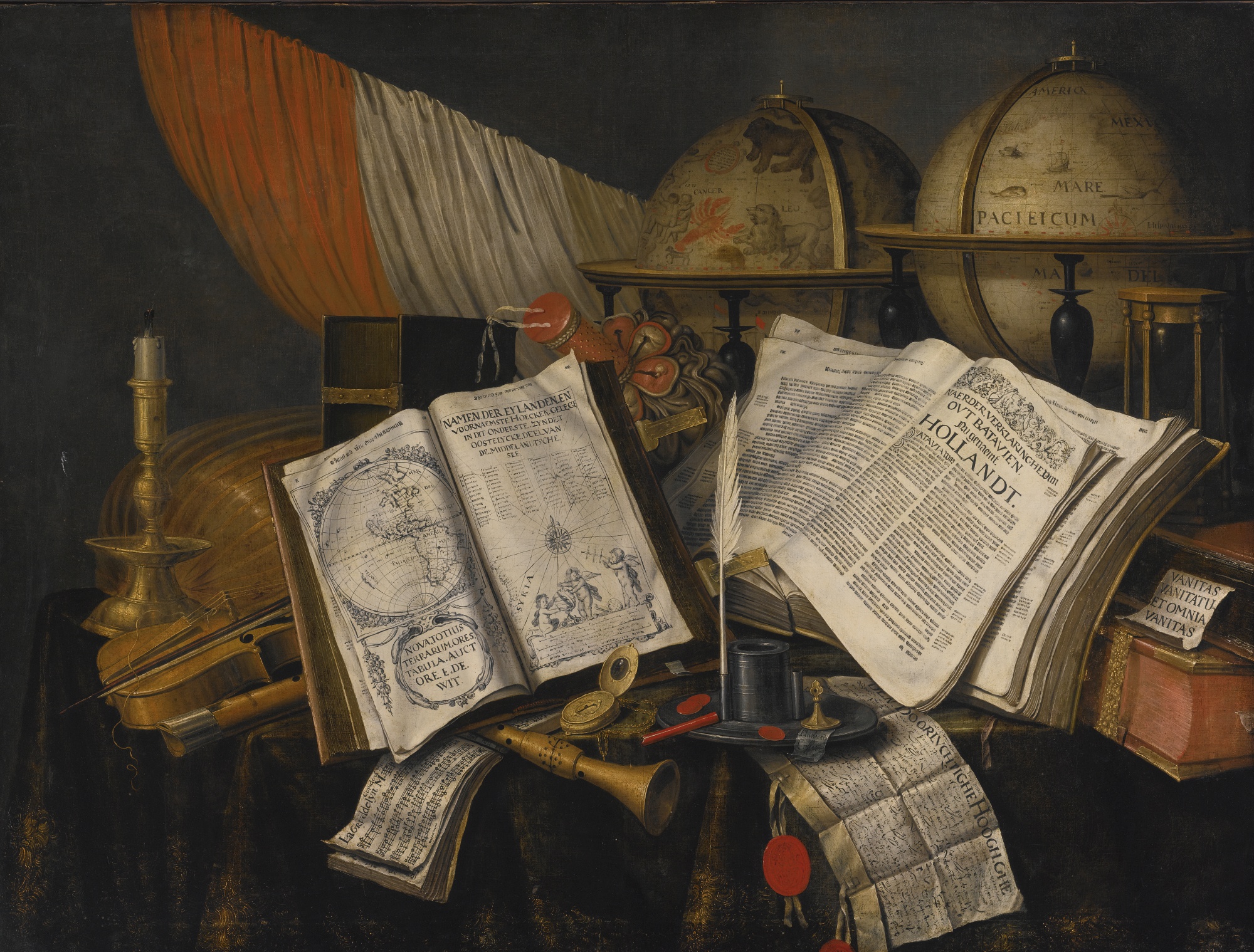
EDWAERT_COLLIER_VANITAS_STILL_LIFEMusic and writing are completely intertwined for me. For each book there is a certain mood I am trying to convey in my writing, and that mood is influenced heavily by the music I am listening to, as well as the art I am creating. My mind is a junk room of ideas–sometimes the best ideas are hidden in the dusty corners.

Lately I have been listening to Eric Whitacre on YouTube a lot, and finding such joy in his love-affair with sound.  He finds the most amazing poetry and sets it to incredible music.

Fly to Paradise

Lux Aurumque

Albert_Bierstadt_-_Rocky_Mountain_Landscape_-_Google_Art_Project (1)Some of my ideas come from  nature but the others just randomly pop in there, like visitors from outer-space.

Every writer knows they are only as good as their next book.

We write drivel, and we write magic–often on the same page, in the same paragraph. We can spend 2000 words describing an attic, and we are at a complete loss as to how to describe an emotion or a scent. We use too may ‘ly’ words and we don’t use enough.

Frequently we don’t follow the rules no matter how often the gurus tell us to.

Writers struggle to bring people who never lived to life, and struggle to show us worlds that defy the laws of nature. Writers struggle with morality and with gods. We battle the forces of Darkness, and sometimes we are the Darkness. We write short stories, serial novels, and screenplays. We write novellas that we intend to make into novels at some point, but may never get around to.

on writingEvery day we write, spending hours alone in dusty offices or struggling to find half-an-hour in a quiet corner of the laundry-room, away from the din.

Somewhere along the line, I stopped making excuses for not writing, and began doing it. At first, maybe I didn’t have a typewriter, but I did have a pencil and paper, so I used them.

We writers are artists, painting with words, and we are unable to sleep until that picture is on the page.

For me, writing is about staying fired-up over an idea, and getting that idea out of my head and into its proper alternate universe.

I love this gig!

2 Comments

Filed under Adventure, Battles, Books, Fantasy, Humor, Literature, writing

Sweeney Todd, or Gutting the Beast

Anne_Anderson05 - Beauty sat down to dinner with the Beast illustration PDArt - Wikimedia CommonsThis is the 3rd and final installment in the series “WORD, A Shifty Beast,” which focuses on helping you get the most out of using Microsoft WORD as your word-processing program when writing a novel.

You have saved all your raw files in a folder labeled in such a way that you know it contains your background work. You have formatted your final manuscript exactly the way the chosen editor’s submission guidelines want. You sent in the work to the highly rated  Sweeney Todd Editing Services and Sweeney loves it!

You came to an agreement regarding payment, and you paid the first half of the editing fee. NOW you are waiting for your first email, containing those dreaded revision requests. At last the email arrives and you see one or two attachments. The email may or may not be encouraging, some editors are very businesslike and some are chatty.

The first thing you discover is that Sweeney Todd has brutally dismembered your carefully formatted manuscript into its separate chapters, and named the files according to his system. You will now use his system for naming your files. Let’s say Sweeney sent you two files:

Elf Madness-JDoe-ch1-ST edit rnd 1.docx

Elf Madness-JDoe-ch2-ST edit rnd 1.docx

This file name says: Your book–your author name–chapter–editor name-round one.  

You will create a new folder within your Elf Madness folder, this one titled EM Rnd1 Edits S.Todd, and you will save the chapters that Sweeney has sent you in this folder. They will remain exactly the way Sweeney sent them so that you can refer back to them if needed.

Now, inside the EM Rnd1 Edits S.Todd folder you will create a new folder, this one titled EM Rnd1 Edits JD complete. This sub-folder is where you will save the first round of your revisions.

Next you will open the first file Sweeney sent you, Elf Madness-JDoe-ch1-ST edit rnd 1.docx. You will immediately click ‘SAVE AS’ and you will save it as Elf Madness- ch1- rnd 1 edit JDoe complete .docx.

NOW you are ready to make your revisions as your editor has requested.

Unfortunately, this is where you find yourself looking at a sea of red or blue with your stomach churning, and fear and loathing in your heart. There is a column on the right hand side of the manuscript and it is chock full of comments, not all of them complimentary.

With a sense of disbelief you realize your beautiful manuscript was not perfect!

Prnt scrn editng tab for WORD

This is the first step to becoming a real author.

Now you will address each comment individually:

  1. On the ribbon at the top of the page, click on the Review Tab:
  1. Prnt scrn editng tab for WORD 1
  2. Next, click on the comment to highlight it. This way you can see exactly what it pertains to, and you can make that correction. Make the correction
  3. With the comment highlighted, click the Delete button, and that comment will go away. Continue doing this all the way through the chapter.

Prnt scrn editng tab for WORD 3

Suddenly, you have come to a place, where what you have written is what you want to keep – “OH NO!!!” But all is not lost. Leave Sweeney’s comment there and highlight the part you want to keep. At the top of the page, click ‘New Comment.’ In the comment box that will open below Sweeney’s comment, explain why you want that particular thing to stay. When your editor opens that file for the second round of edits, he will see what you said, and will proceed accordingly.

Prnt scrn editng tab for WORD 4

You will attach the revised file to an email and return it to Sweeney promptly. This way he will see you are serious about your book. He will take your revised file, and that will be the basis for the next round of editing. This will be repeated until you have completed to entire process according to your agreement with Mr. Todd.

This is the way the editing process that I have been involved in works.  My editors NEVER make changes in my manuscript for me–they make suggestions and I am responsible for making those changes and sending the revisions back to them. I’ve experienced this process both ways, and having an editor who goes in and makes  changes and doesn’t show you what those changes are, OR ask your opinion regarding those changes is simply NOT acceptable. I will never again allow such a thing to happen to my work.

I currently have 3 manuscripts in the editing mill. I find it’s like getting a tattoo—it hurts like hell and you can’t wait until it’s over, but before it has even healed, you’re already planning your next one. (Do you like my Tolstoy tattoo?)

I hope this series on how an author can use Microsoft WORD has helped you get your own manuscript ready for the submission process. It is the most commonly used word-processing program and is actually not too difficult to learn the basics of.  Every word-processing program has a learning-curve, and some programs, while free, don’t offer an author or the editor the ability to do the simple things WORD does.  Most editors agents and publishers only accept WORD files, if they are accepting electronic submissions.


3 Comments

Filed under Battles, Books, Fantasy, Humor, Literature, Uncategorized, writer, writing

Formatting or The Shape of the Beast

Anne_Anderson05 - Beauty sat down to dinner with the Beast illustration PDArt - Wikimedia CommonsThis is the 2nd post in the series on using Microsoft WORD, “WORD—A Shifty Beast”.  The first post covered naming files and version control.  This post focuses on using the tools WORD gives you to format paragraphs and line spacing, making your manuscript ready for submission to an editor.

Often, an inexperienced author will submit a manuscript rife with the most bizarre formatting. He is terribly surprised and hurt when it is rejected and returned with a bland form letter that tells him nothing of why it was not acceptable. Rejections are rarely returned with an explanation of why, so the author is left to guess what they did wrong.

Most editors don’t have time to deal with badly formatted manuscripts and these submissions are not even considered.  All agents, editors and publishing companies have specific, standardized formatting they want you to use, and these guidelines are posted on their websites.

For the most part this formatting is basically the same from company to company, so once you know what the industry standard is, it’s easy to make your manuscript submission-ready, at least in the area of formatting.

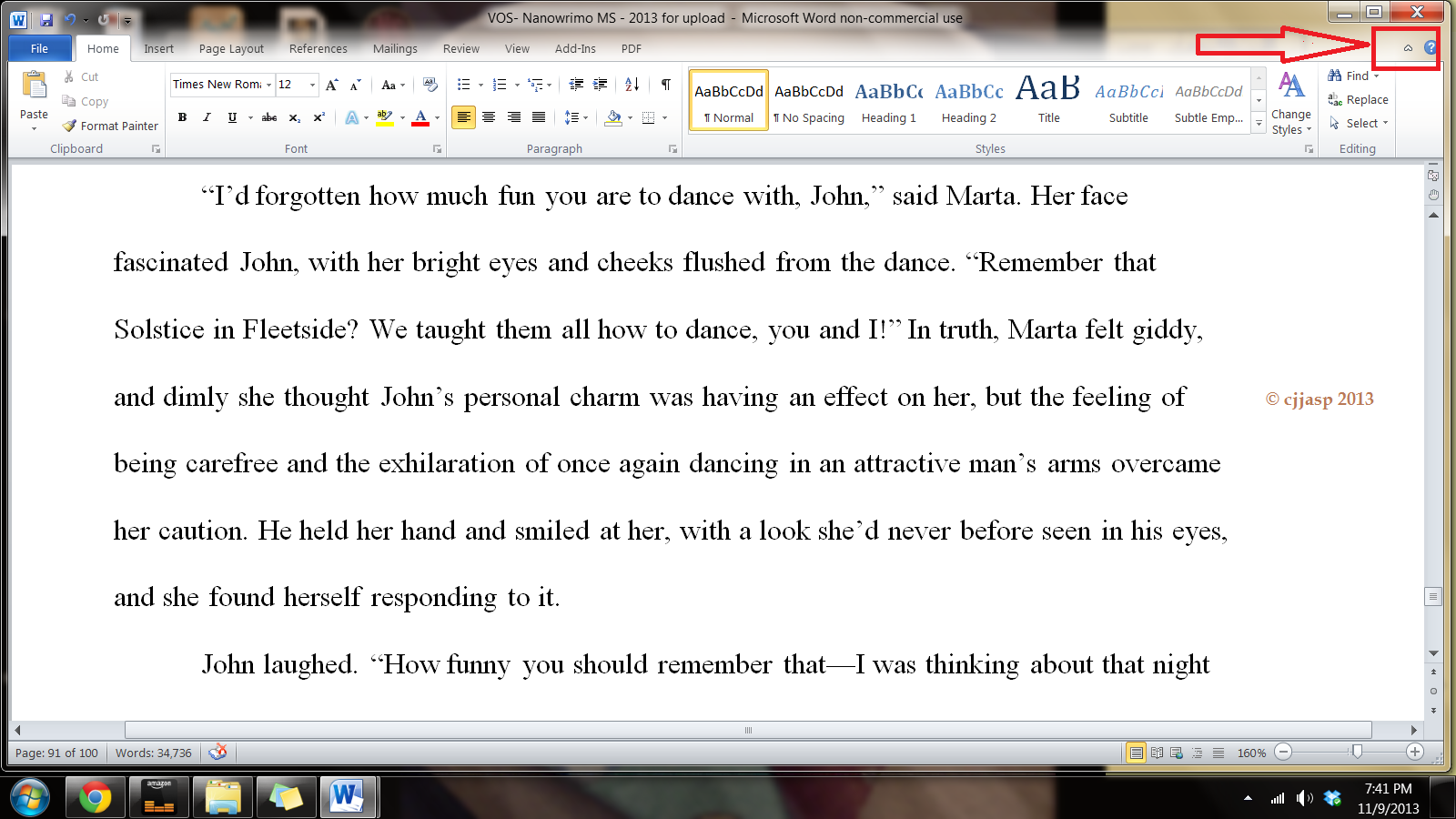
First of all, running across the top of the page is something called the ribbon, and this is your toolbox. Everything you need to create a manuscript is right there, waiting for you to learn to use it. On the right hand side, by the question mark is a tiny arrow for expanding or hiding the ribbon – and we are going to expand it so we have access to all the tools we will need.

Ribbon 2 - formatting for editors and submissions

First, we must select the font. Microsoft WORD has many fancy fonts you can choose from and also has many sizes.

You don’t want fancy.

Stick with the industry standard fonts: Times New Roman or Courier in 10, 11 or 12 pt.  Most say .11 is fine – for me, in a printout .10 is too small for my elderly eyes, I prefer .12.

209px-Serif_and_sans-serif_03.svg

These are called ‘Serif’ fonts, because they have little extensions that make them easier to read when in a wall of words.

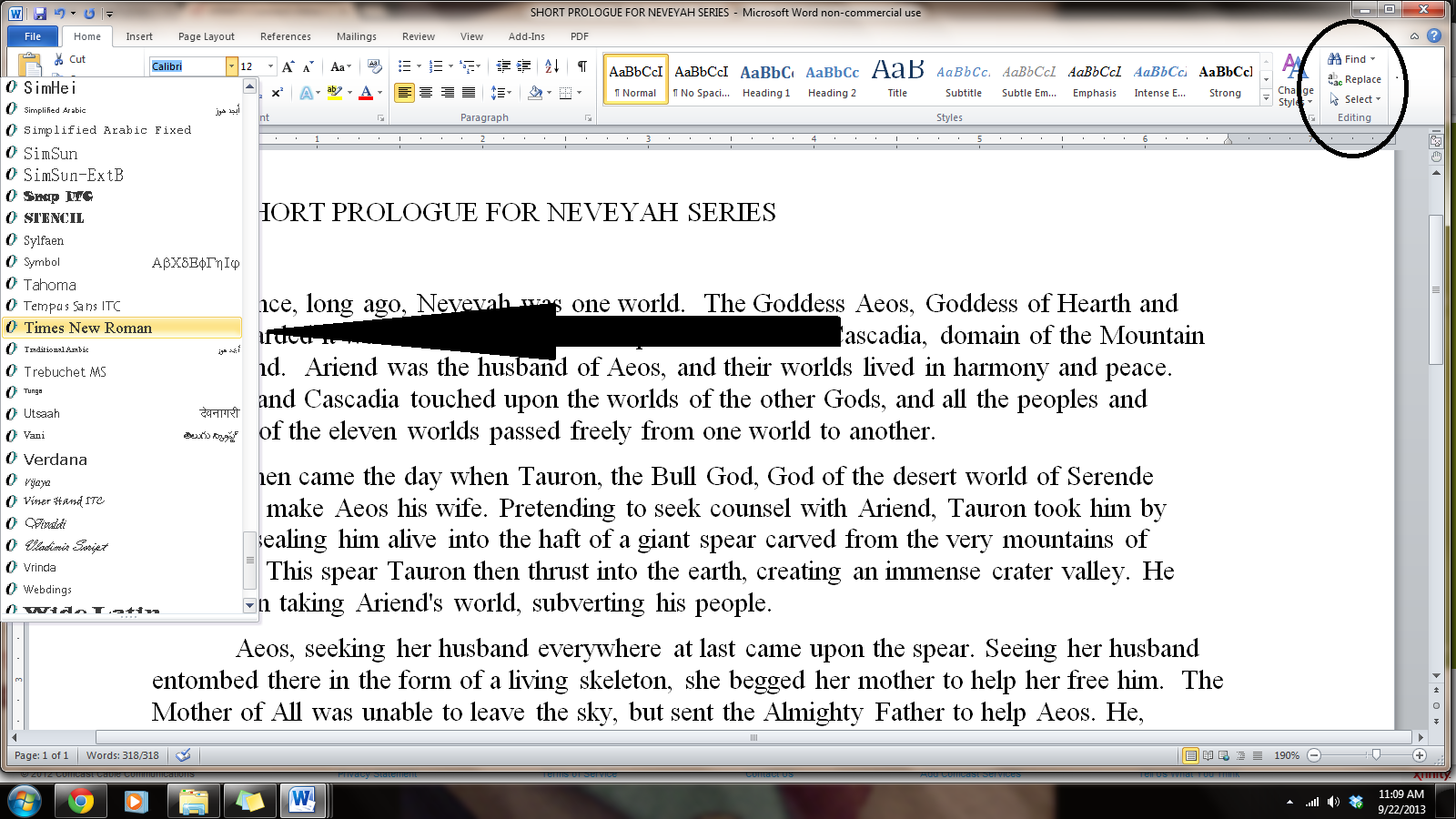
To change your fonts, open your manuscript document, and Click on the tab marked ‘Home’.  In the upper right-hand corner of the ribbon across the top of the page in the editing group, click:

select> select all. This will highlight the entire manuscript.

With the ms still highlighted, go to the font group, on the left-hand end of the ribbon. The default font, or predesigned value or setting, will probably say ‘Calibri (Body)’ and the size will be .11.

fonts post 2 of word series

You can change this by clicking on the menu and accessing the menu. Scroll down to Times New Roman, as it is the easiest on the eyes. Click on that and the font for the entire ms will be that font. Any errors can be undone by clicking the back-arrow.  Once you are satisfied with your changes, click save.

Now we are going to format our paragraphs and line spacing. Standard manuscript format means margins of 1 inch all the way around; indented paragraphs; double-spaced text. Do not justify the text. In justified text, the spaces between words, and, to a far lesser extent, between glyphs or letters (known as “tracking”), are stretched or sometimes compressed in order to make the text align with both the left and right margins. This gives you straight margins on both sides, but this is not the time or place for this type of alignment.

Do NOT ever use the tab key or the space bar to indent your paragraphs. You have no idea what a crapped-up mess that makes out of a manuscript. (That’s editor-speak for a stinking disaster.)  You may have to go in and remove these tabs by hand and it’s a tedious job, but do it now, if you have been using the tab key.

Instead of the tab key, a professional author uses the simple formatting tool:

Locating the formatting tool:

The ribbon- formatting tool

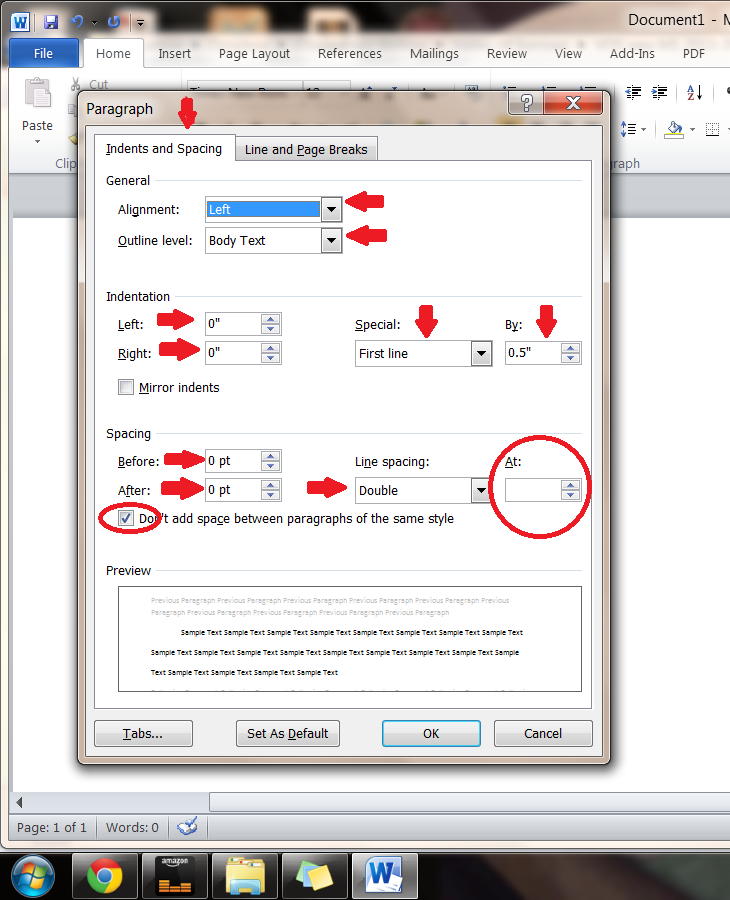
Still on the home tab, look in the group labeled ‘Paragraph’. On the lower right-hand side of that group is a small grey square. Click on it .  A pop-out menu will appear, and this is where you format your paragraphs.

  1. On the indents and spacing tab of the menu: Use standard alignment, align LEFT. The reason we use this format is we are not looking at a finished product here.  We are looking at a rough draft that will be sliced, diced and otherwise mutilated many times before we get to the final product.

The picture below has it all clearly marked out:

paragraph formatting for editors and submissions

1.  Indentation: leave that alone or reset both numbers to ‘0’ if you have inadvertently altered it.

2.  Where it says ‘Special’: on drop-down menu select ‘first line’. On the ‘By’ menu, select ‘0.5’

3. ‘Spacing’: set both before and after to ‘0’.

4. ‘Line Spacing’: set to ‘double’

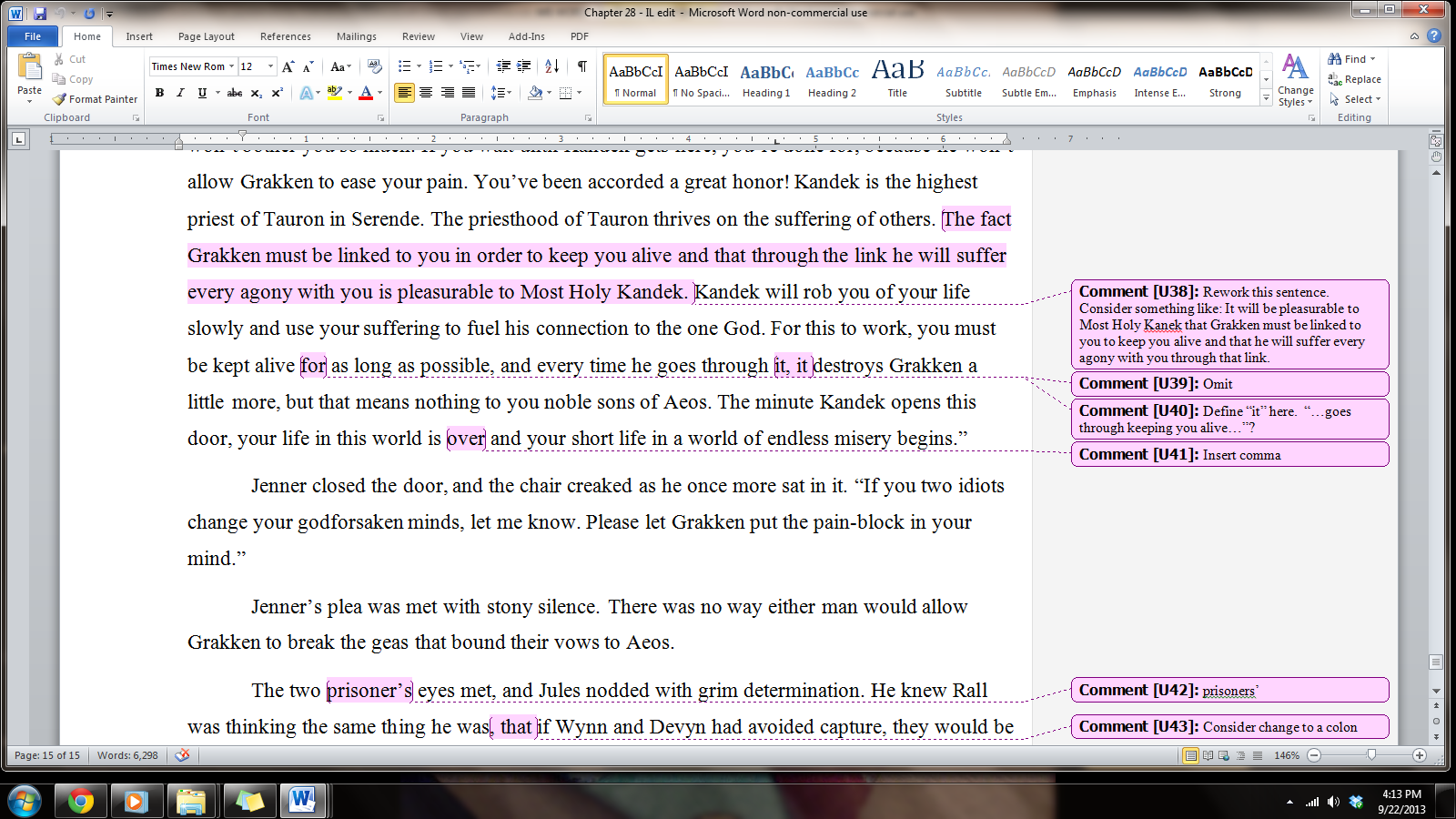
The editor needs to receive his version double-spaced so he can insert comments as needed in the reviewing pane, which will be on the right side of the page when you receive your work back for revisions. Having it double-spaced allows for longer comments.

doublespaced, aligned lft with comments prnt scrn for lirf

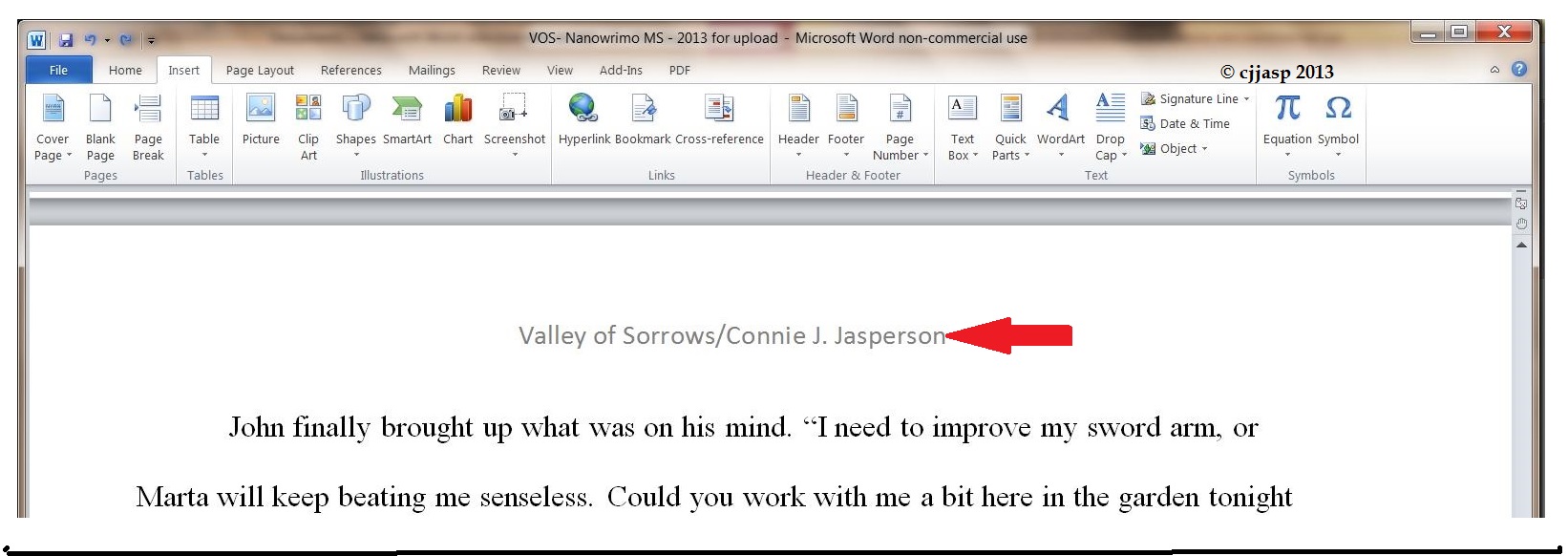
Now we need to make the “Header.”  This is the heading at the top of each page of a word-processed or faxed document, usually automatically inserted and, in this case, consisting of the title of the book and your name.

header

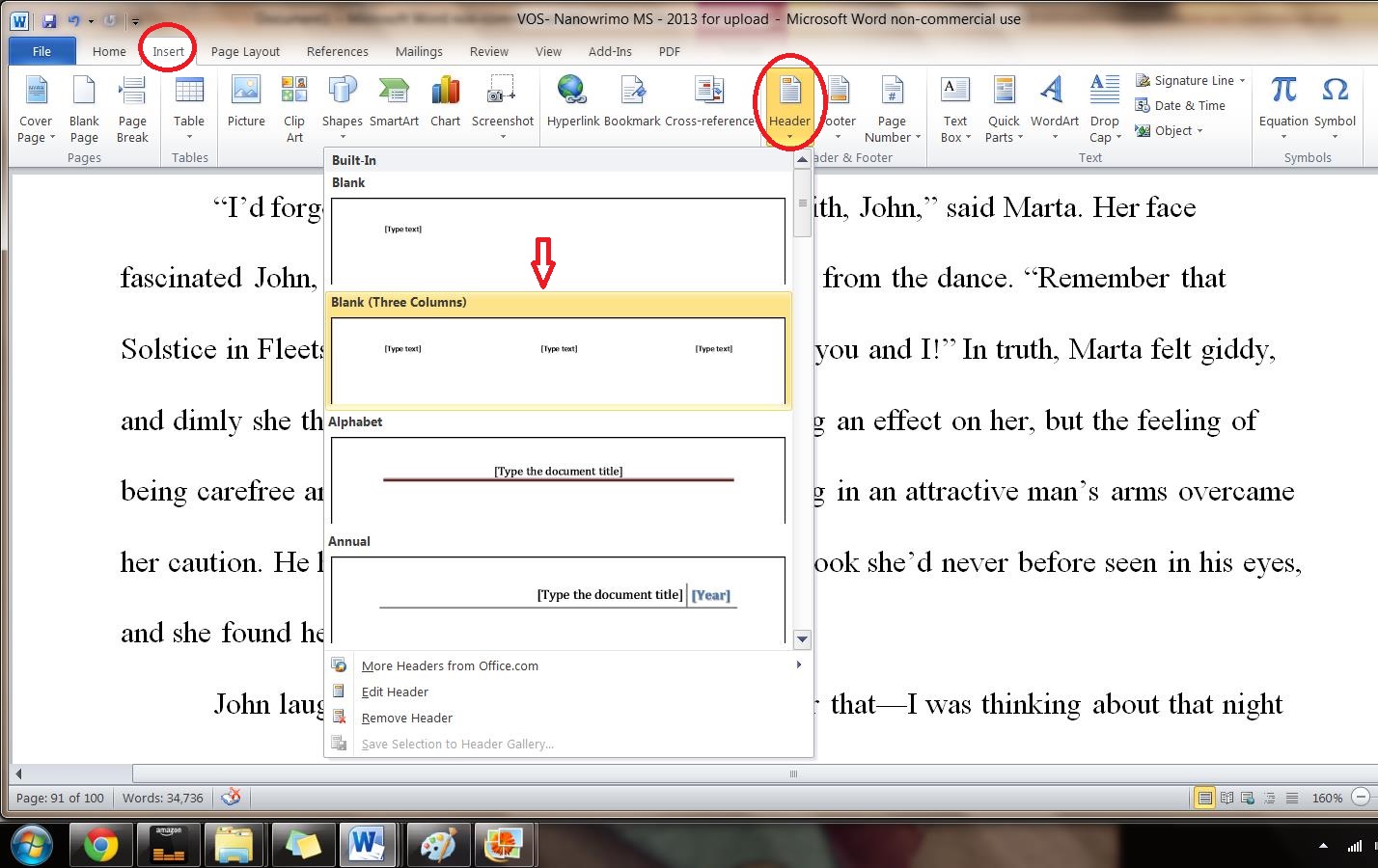
We insert this by opening the “insert” tab, and clicking on “header.”  This opens up a new menu:

 header menu

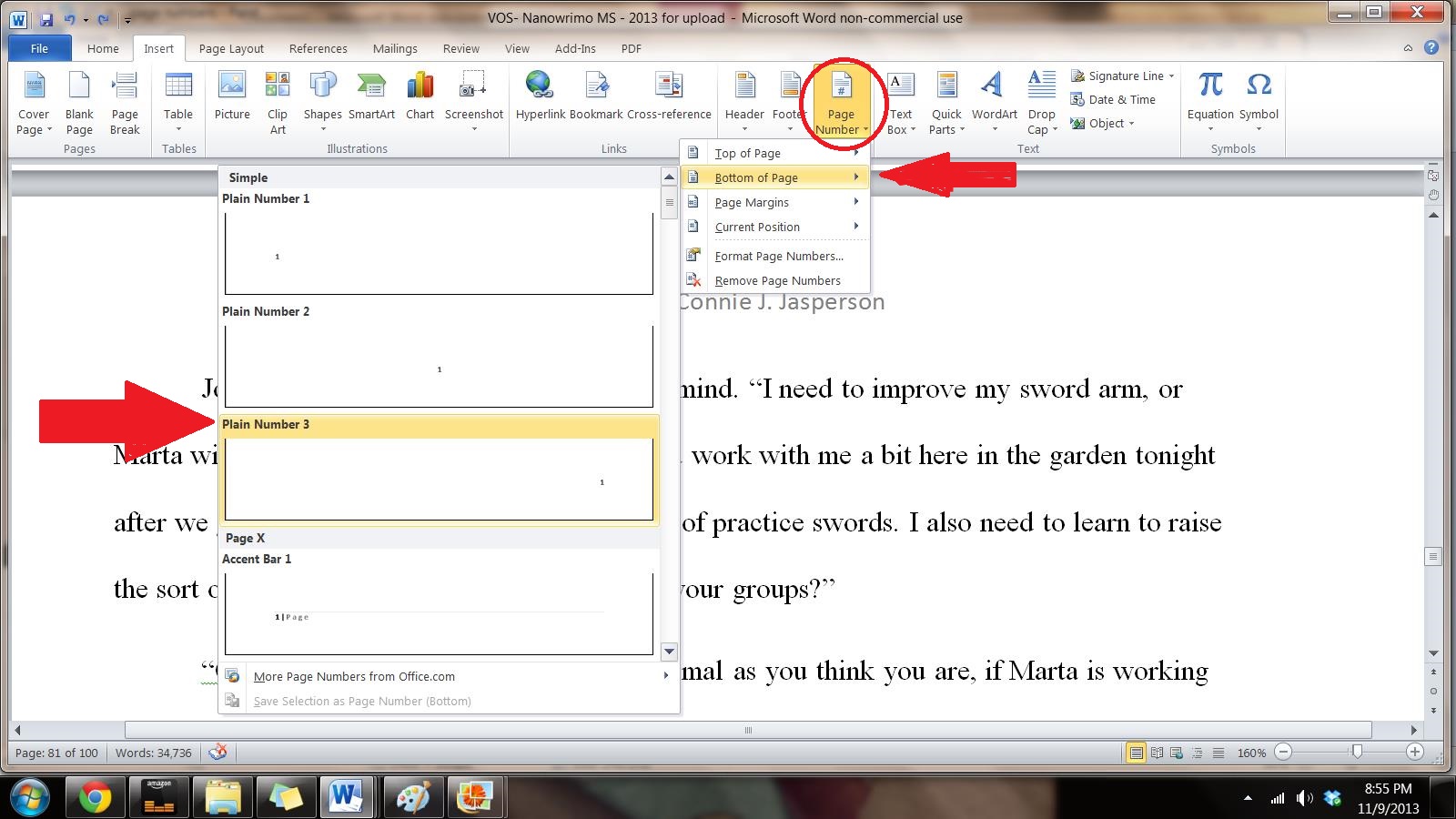
Next we add the page numbers. We put these at the bottom right of the page, using this menu:

page number

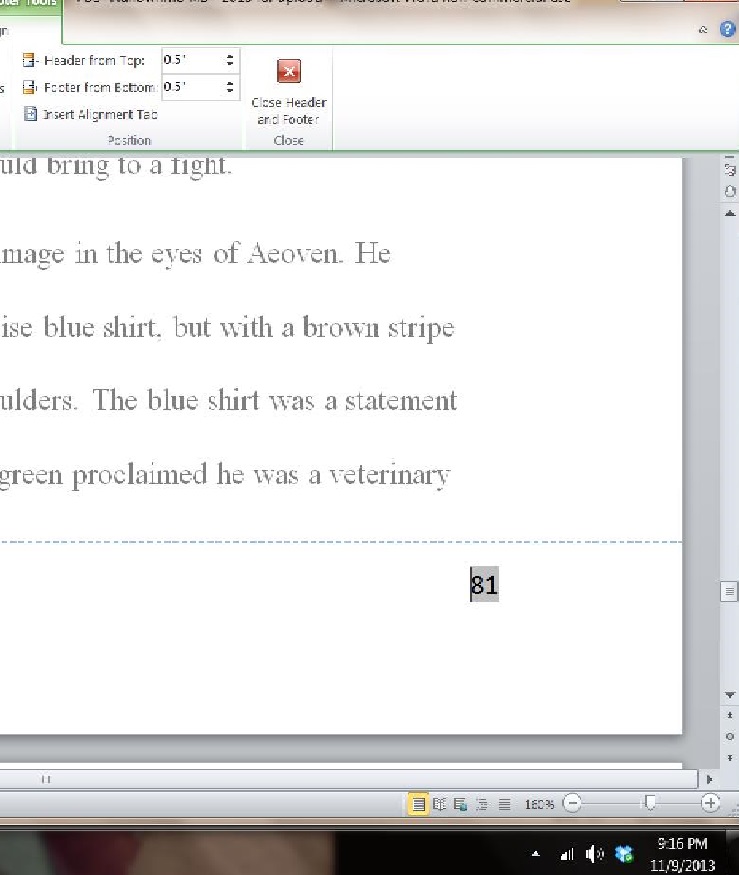
This is how it looks:

footer page number

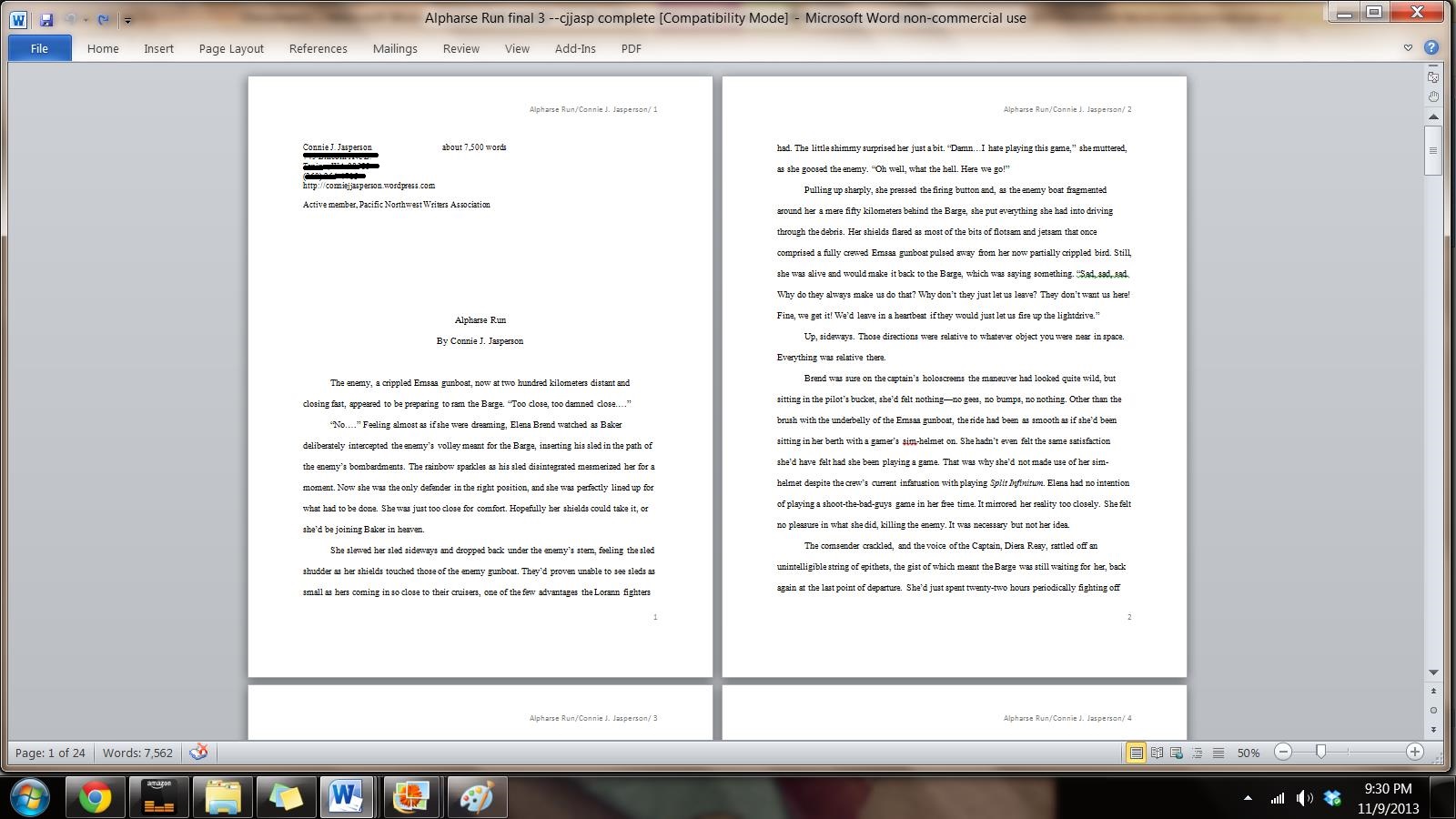
SO once we have all these things done, we will have a manuscript that looks like this:

Full ms ready for submission

This manuscript is submission ready, and is:

  1. Aligned left
  2. Has 1 in. margins
  3. Is double-spaced
  4. Has indented paragraphs
  5. Header contains title and author name
  6. Footer has page number
  7. First page contains the author’s mailing address and contact information in upper left hand corner

This may seem like overkill to you, but I assure you, if you are really serious about submitting your work to agents, editors, or publishers, it must be in as professional a format as is possible.

One fun way to become more fluent with WORD is to open a new document, and save it as “WORD practice file”

Type a paragraph, and then go through the above steps, practicing formatting your work.  Use this document to get to know where everything is on the ribbon, and keep playing with it until you have developed your self-confidence on a document that won’t matter if you mess it up.  It’s actually kind of fun, seeing what options WORD has for making pretty documents as well as simple ones.

Just don’t get too fancy with formatting your novel before you submit it to an editor because no matter how pretty you make that manuscript, if it doesn’t follow the submission guidelines for the place you are submitting it, you have simply wasted your time.

The next post in this series will examine the review tab, and take us through the editing process, showing you how your editor uses WORD during the editing process to guide you to a better manuscript, and what your editor expects from you when you send back revisions.

Ohh…the agony….

6 Comments

Filed under Adventure, Books, Fantasy, Humor, Literature, Uncategorized, writer, writing

Version Control, or The Name of the Beast

Anne_Anderson05 - Beauty sat down to dinner with the Beast illustration PDArt - Wikimedia CommonsThis is the 1st post in the series “WORD—A Shifty Beast,” focusing on helping authors of both fiction and non-fiction get the most out of using Microsoft Word, if that is your chosen word-processing program.

I use MS Word as my word-processing program. It is a reasonably priced thing, although if I could afford to buy a different program I would use  Corel WordPerfect. It is much easier to find the hinky formatting errors in your manuscript with WP, but that is a blog post for another day.

Microsoft WORD is a versatile program and has many wonderful tricks for writing letters, making awesome presentations and pretty brochures. It is good in a business setting.

However, for the author, Word is a shifty beast at best. One must learn how to make it work, and there is a learning curve. Just like every other product out there, WORD is the creation of many layers. It has had many incarnations, and some were more successful than others, and there are inherent flaws in the design. All that aside, of all the versions of WORD I have used, I like the 2007 – 2010 version best.

Most authors are using some form of WORD, whether it is the free version, or the inexpensive student version I use.  I’ve had to do a lot of desktop support for various clients via chat and cell-phone lately, so today we begin a series on using MS WORD as your word-processing program.

When we first begin to write seriously we learn how critical it is to have proper naming of our files to ensure version control.  The most recent file will usually be the best edited unless you have accidentally saved an earlier version over it.

Oh, the Agony….  Experience is a hard teacher.

ALWAYS use a separate file-folder for each version, and ALWAYS use consistent file labeling practices to avoid this tragedy!

You would be amazed at how many authors I meet who don’t know how to properly save files, and the reason they don’t know is they have never worked as an office manager using WORD, so they have no concept of how easily something that should have been simple can veer out of control.

I am a structural editor, and as such I deal with a lot of different authors and am responsible for saving their files in a consistent and manageable way. I spent many years as an office manager for a charter-bus company, and here is where my hard-earned knowledge of how to use my word-processing program comes in:

  1. I create a master folder for each individual author in my CJJASP Editing folder. That folder is inside the CJJasperson Writing folder in my dropbox account, which is what I write from at all times.
  2. I never use the documents library on my computer for saving anything important. I use dropbox because my work is always saved into the cloud and I can access it from a computer at the public library if my computer is toast for any reason. My work is also always available on my desktop if the internet is down so I can save it to a thumb drive, and when internet access is reestablished, the files I have changed will be saved automatically. GoogleDocs is also free, and many people use it successfully.

Dropbox is free, gives you as much storage as a thumb drive and is always accessible.

DB screenshot

I have an icon on my desktop that takes me directly to a standard library of files (menu) when I click on it. But I can access this menu on the main website from any computer by going to dropbox dot com and entering my email and password. Yes, it is password protected, and a good 6 to 8 combination of letters and numbers is best.

  1. I use a specific sort of naming system. For any new master-folder, the file-name will ALWAYS be:  Book_ AuthorName_script.doc .   This is the main file folder for this book and this author! every thing pertaining to this book will be in this file in sub-folders.

There will be at least two sub-folders in this file, and there may be up to eight. (One for each step of the editing process.) Version control is critical, so proper naming of the files is absolutely essential.

First: The original raw manuscript in its entirety is saved in this folder. Lets use Joan Hazel’s wonderful book, Burdens of a Saint for example:  I will name it this way:

Burdens of a Saint-JHazel-script  (It will look like Book_ AuthorName_script.doc)

Word will automatically add the .doc as the extension.

There will be 2 folders for every step of the process this manuscript goes through with me: One folder will contain files from the author’s desk to me, and the other will be from my desk to the author.

  1. Inside of the master file is a folder labeled:  1st Round Edits JH (Book initials>version>author initials)

I will copy and save each individual chapter to a new document, and I will give them a specific name. Yes, I am separating each chapter out of the whole ms, but we will not lose their order because we have a reliable system for naming files and will ALWAYS use it!

save as screen shot

First of all, be sure to save it as an actual Word DOCUMENT and not a Template.  If you save it as a template, you will keep getting a warning the document is read only and it won’t let you save it.

I will do each chapter one at a time, saving them and closing them out. Any time I am confused as to what chapter I am supposed to be on, I look at the library of files to see what I have already saved, and go the next chapter.  (Libraries are the menus you get when open “Save As” and are where you go to manage your documents, music, pictures, and other files. You can browse your files the same way you would in a folder, or you can view your files arranged by properties like date, type, and author.  The picture below is of a Windows Explorer library.)

As I save each chapter, they will automatically sort themselves into the proper order as long as you name them this way:

Book title initials>Chapter # > author initials  –  it will look like this:

BOAS chapt 1 JH submitted.doc 

This  tells me: it is chapter 1 of Burdens of a Saint, by author Joan Hazel, and is the raw unedited version. This is important to save it this way, in case we need to refer back to it. This file will remain unaltered.

Each consecutive raw chapter will be named in this way and the list will look like this:

Folder shot

Inside  BOAS beta 1st Round Edits JH,  I create a second folder, this one labeled: 1st Round Edits CJJASP complete. It will be at the top of the list and will look like this:

These are the first edits of the individual chapters, with my comments and suggestions in the right-hand column, and are what I send to the author for their consideration. These I will name like this:

BOAS beta chapt 1 cjjasp edit 1.doc   Again, each consecutive chapter will be named in this way, and the library will look the same as the one in the image above.

  1. The Author will make the changes or not as they see fit, and will send me each corrected chapter back.  When those chapters come back to me, that is the beginning of round 2.  The files will be named with the number 2.

BOAS 2nd Round Edits JH  (sub-folder name for files submitted by author)

BOAS chapt 1 JH rnd 2.doc   (document name for each document in the folder)

BOAS chapt 2 JH rnd 2.doc   (see the pattern here?)

2nd Round Edits CJJASP complete (folder name for files edited 2nd round)

BOAS chapt 1 cjjasp 2nd rnd edit.doc (and so on)

You, as an author, will create many versions of your manuscript. YOU MUST manage your versions with meticulous care, or you will lose files, have to rewrite sections you just wrote (and which were brilliant) or any number of horrible, irritating situations will arise.

These situations were not caused by your word processing program, so don’t blame Bill Gates.  They were caused by you not knowing how to prevent them from happening.

But that’s not a problem now, right?

4 Comments

Filed under Books, Fantasy, Literature, Uncategorized, writer, writing