
 One great convenience that an indie author can place in their Kindle, Nook or Smashwords e-book is a Hyperlinked Table of Contents. This is something I use all the time –it allows me to easily page back and forth.
The one I am using for this is an ancient file for the book that spawned Huw the Bard, so ignore the page numbers. In those days I didn’t know that page numbers are like prisoners—they just weigh you down! If you have seen my previous post on this subject you can quit now and I won’t hold it against you. However, if you are in the middle of formatting your first manuscript, this post may be of use to you!
For print versions, I keep costs down by not wasting precious pages on something the reader won’t use. However, printed technical manuals, textbooks, and cookbooks must include a TOC. In print books, every page you can do without when publishing your novel in paper form will keep the final cost down and make your paperback more affordable for your prospective reader. Very few people will pay $18.99 for a book by an unknown author.
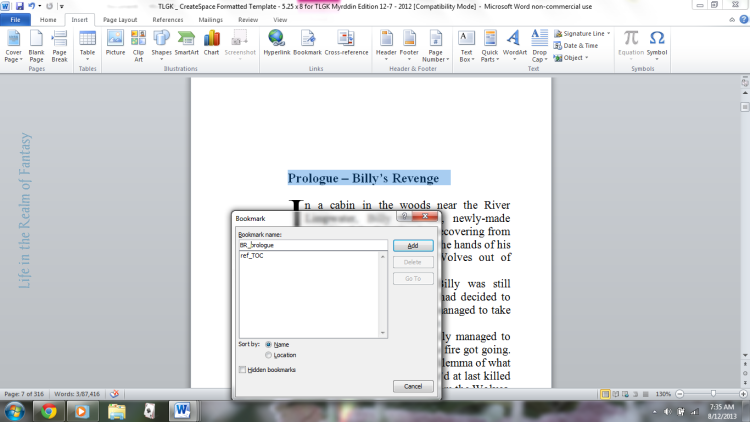
The first thing you want to do is create a bookmark. First highlight the words “Table of Contents” and then go to your ‘Insert’ tab. Click on ‘Bookmark’in that ribbon. Type in the words ref_TOC

Then click “Add”. In every ms it is important to name the Table of Contents bookmark exactly that, including the underscore, because that’s what Smashwords looks for and it is simply a good practice to have a uniform system for naming files.
Now it’s time to bookmark the prologue. Scroll down to your prologue and do it exactly the same way as you bookmarked the TOC, but for this ms let’s name it BR_prologue. You will name yours with your ms initials and the word prologue. If you have no prologue, skip this step. See the picture below:
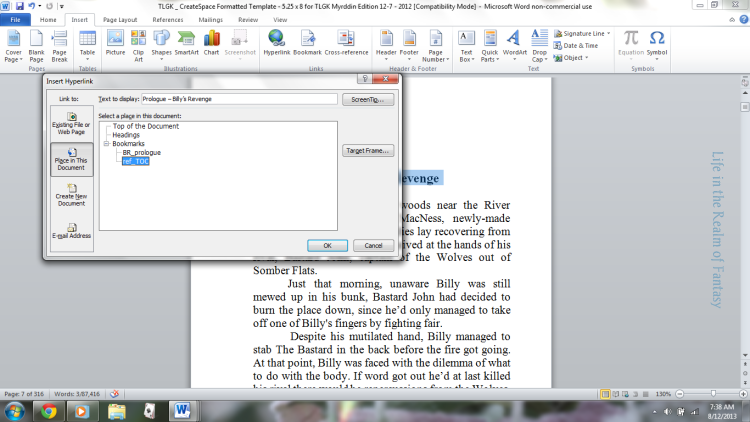
As long as you are there, with the chapter title highlighted, click “insert Hyperlink” on the ribbon. On the left, you want to ‘Link to:’ “Place in this Document”. That will bring up your bookmarks. Select ‘ref_TOC’ and click OK. This will turn your heading blue, which is called a ‘hyperlinky’. Press control and click on the link. it will take you back to the table of contents. Once you have used the hyperlinky it will turn purple. How cool is that! This is how that screen looks:
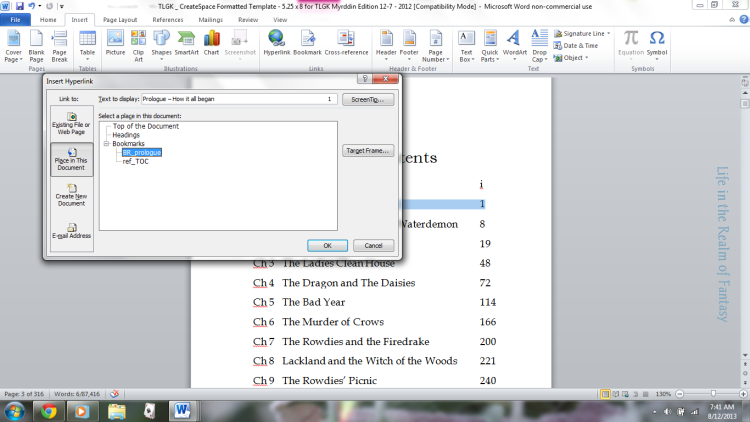
Now that you are back at the Table of Contents, highlight “Prologue and click “insert Hyperlink” on the ribbon. On the left, you want to ‘Link to:’ “Place in this Document”. That will bring up your bookmarks. Select ‘BR_prologue’ and click OK. That will turn it blue. Press control and click on the link. it will take you back to the heading of your prologue.
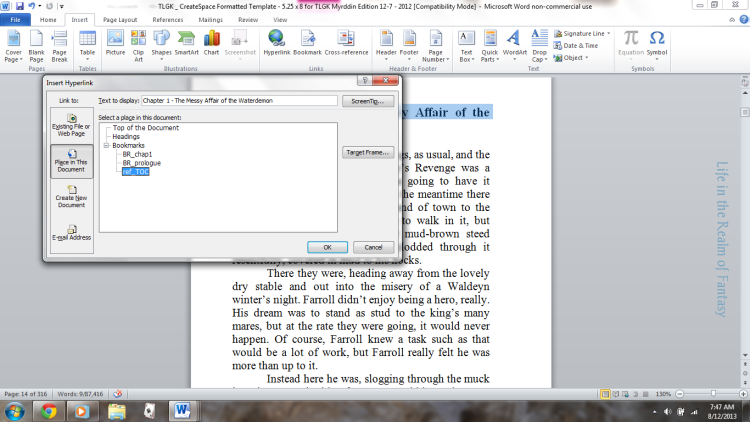
Do this for the entire table of contents, always remembering to link your chapter heading back to “ref_TOC”, and test each link as you go. Four more pictures just to help you remember:
—-

—-
—-

—-
I hope this helps you in formatting your eBook manuscript. All my books have Smart TOCs. I build the TOC into my final formatted manuscripts when I am assembling the final proofed chapters and inserting maps.
On a side note, a hyperlinked TOC is an incredibly useful tool to help you navigate within any long manuscript whether you intend to publish it or not. Although I had used bookmarks before in the course of my work, when I first began this journey I had no idea that the fancy TOCs I admired so in other people’s e-books were such a simple thing to create.
But that’s the way it always goes–things that seem like they should be hard are often the most simple, while something that should be easy turns into a drama of epic proportions.
Here’s to less drama and more simplicity! Learning how to format an e-book isn’t really that hard, and the wonderful people at both Smashwords and at Amazon have a lot of information freely available to you. Remember, as an indie, you are your own publisher, and what you put out there has to be the best you can make it.
Making use of the free information that is out there on the internet can only help you in this regard!


 Life in the Realm of Fantasy