Tag Archives: formatting

#amwriting: headers and page numbers

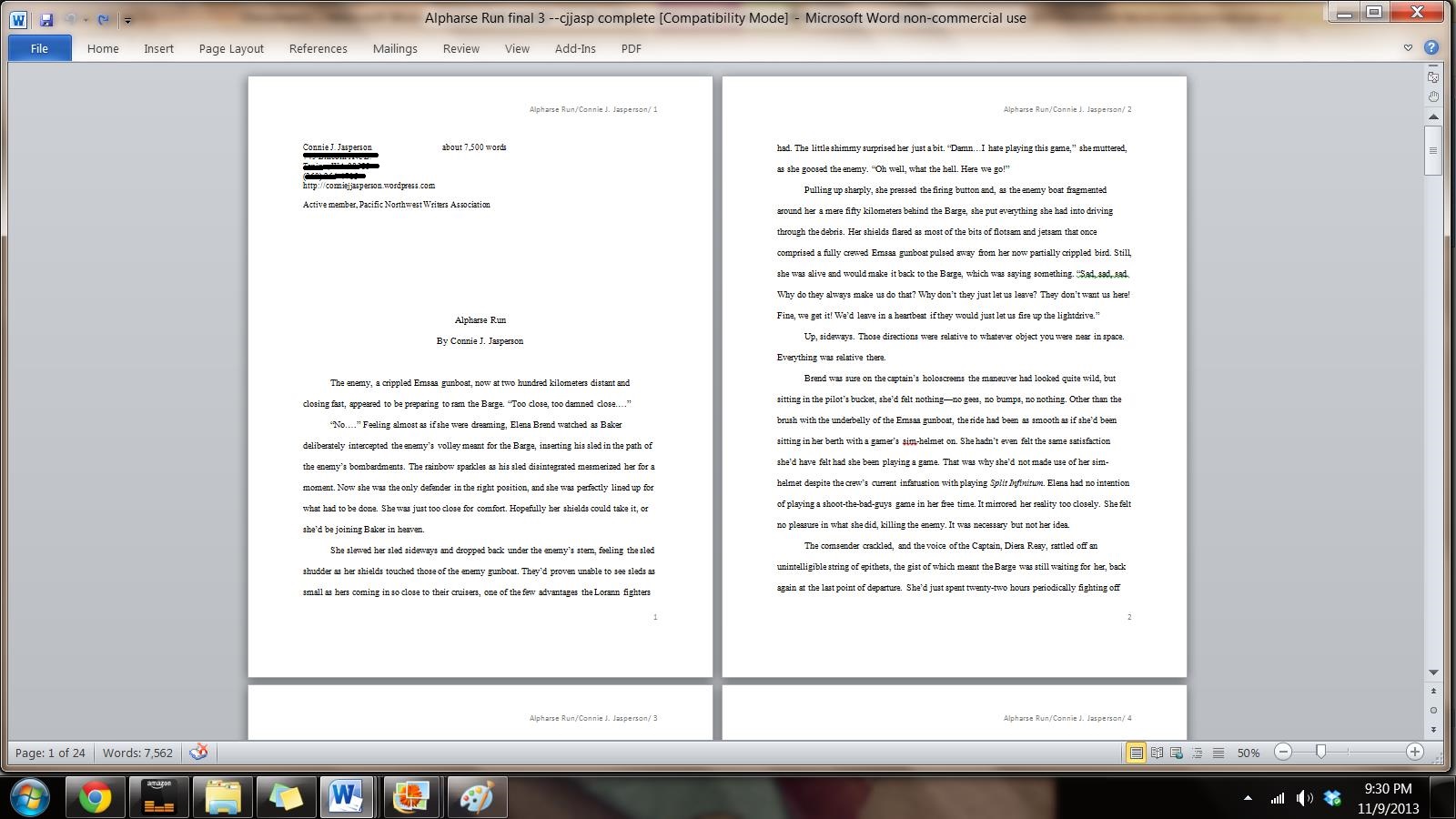
Book- onstruction-sign copyI’ve blogged before on this subject, but it is time to talk about it again: making your manuscript ready for submission to an editor, agent, or a publisher. All agents, editors and publishing companies have specific, standardized formatting they want you to use, and these guidelines are posted on their websites.

The submissions page for TOR Forge, one of the Big Boys in the publishing world, clearly says: “Standard manuscript format means margins of at least 1 inch all the way around; indented paragraphs; double-spaced text; and Times New Roman in 12 pitch. Please use one side of the page only. Do not justify the text. Do not bind the manuscript in any way. Make sure the header of the ms. includes your name and/or the title of the book as well as the page number (on every page).”

For the most part this formatting is basically the same from company to company, so once you know what the industry standard is, it’s easy to make your manuscript submission-ready, at least in the area of formatting.
stopI’ve said this before, and I will say it again: Do NOT ever use the tab key or the space bar to indent your paragraphs. Many times publishers want electronic submissions and you have no idea what a crapped up mess (sorry for the editor-speak) using the tab key makes out of an electronic manuscript.  You most likely will have to go in and remove these tabs by hand and it’s a tedious job, but do it now, if you have been using the tab key.

You might say, “Well I only submit to traditional publishers who all want hard-copy.” That, my friends, it not true. The entire publishing industry is undergoing modernization, and while they do still accept hard-copy, electronic submissions are rapidly becoming the preferred method, even with the larger publishers. Don’t limit your options by refusing to learn a simple trick.

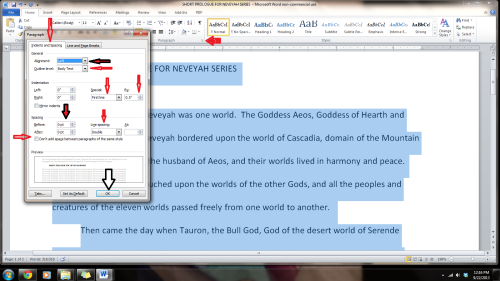
To format your paragraphs indents, first highlight the entire manuscript: on the far right side of the home-tab at the top of your page, click select all. Next,  still on the home tab,  click on the little box at the lower right of the box that says ‘Paragraph.’  This will open a whole new menu:

  1. On the indents and spacing tab of the menu: Use standard alignment, align LEFT. The reason we use this format is we are not looking at a finished product here. We are looking at a rough draft that will be sliced, diced and otherwise mutilated many times before we get to the final product. The following pictures are for WORD 2010, as I have not yet upgraded my MS Office program, but the basic ideas are the same.
paragraphs post 2 pof word series

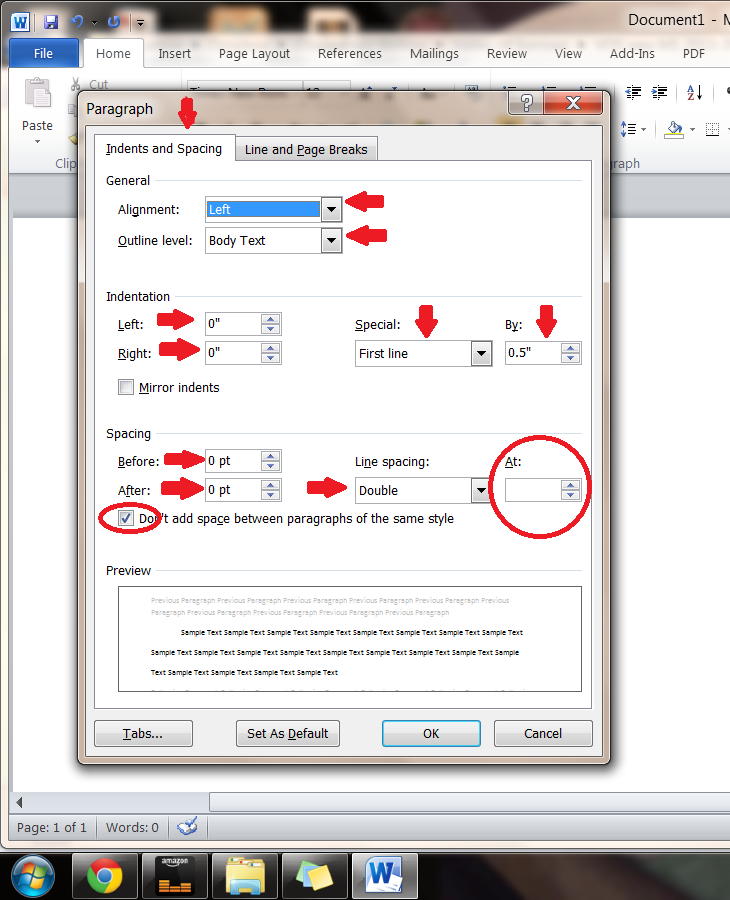
  1. Indentation: leave that alone or reset both numbers to ‘0’ if you have inadvertently altered it.
  2. Where it says ‘Special’: on drop-down menu select ‘first line’. On the ‘By’ menu, select ‘0.5’
  3. ‘Spacing’: set both before and after to ‘0’.
  4. ‘Line Spacing’: set to ‘double’

Do not forget to click OK at the bottom of the menu.

But today we are going to talk about headers and page numbers:

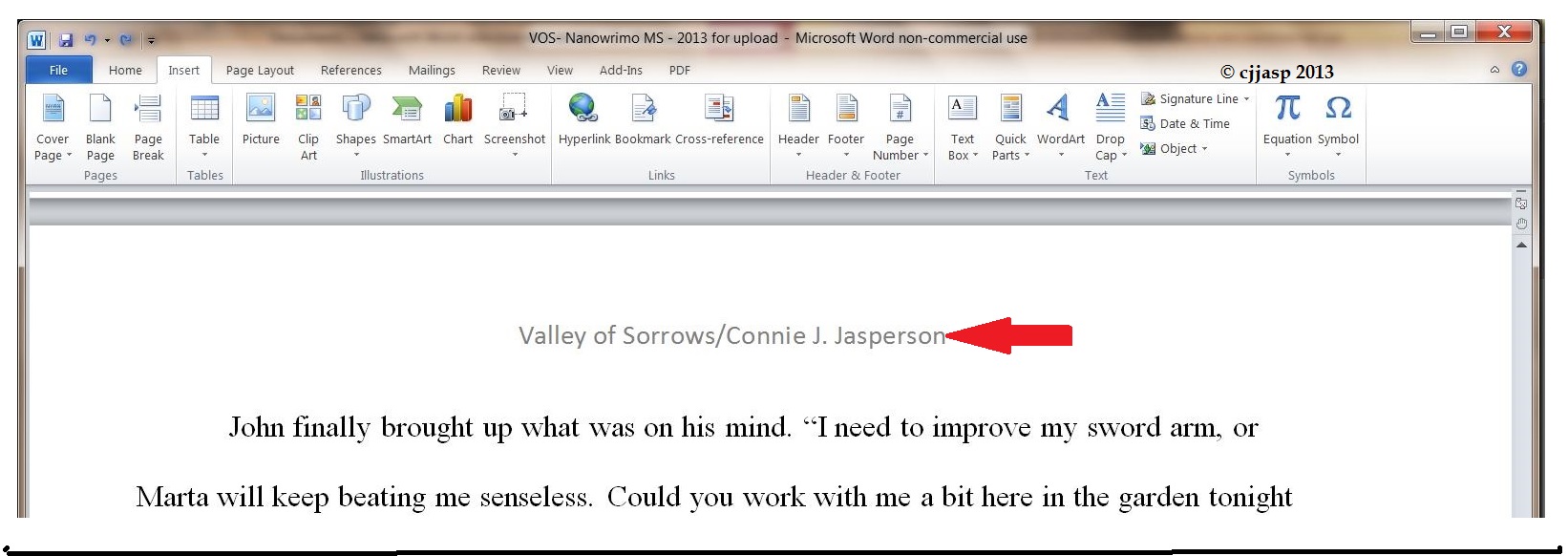
The “Header” is the writing in the margin at the top of each page of a word-processed or faxed document, usually automatically inserted and, in this case, consisting of the title of the book and your name.

Publishers and editors want this because when they receive a print copy, they want them UNBOUND. Each page should be clearly marked with your name and/or the title of the book as well as the page number. Also, publishers and editors who ask for electronic submissions may need to print sections of your work for closer examination. Accidents happen: if the ms falls off a desk, it can easily be reassembled and the editor will always know that brilliant work was written by you.

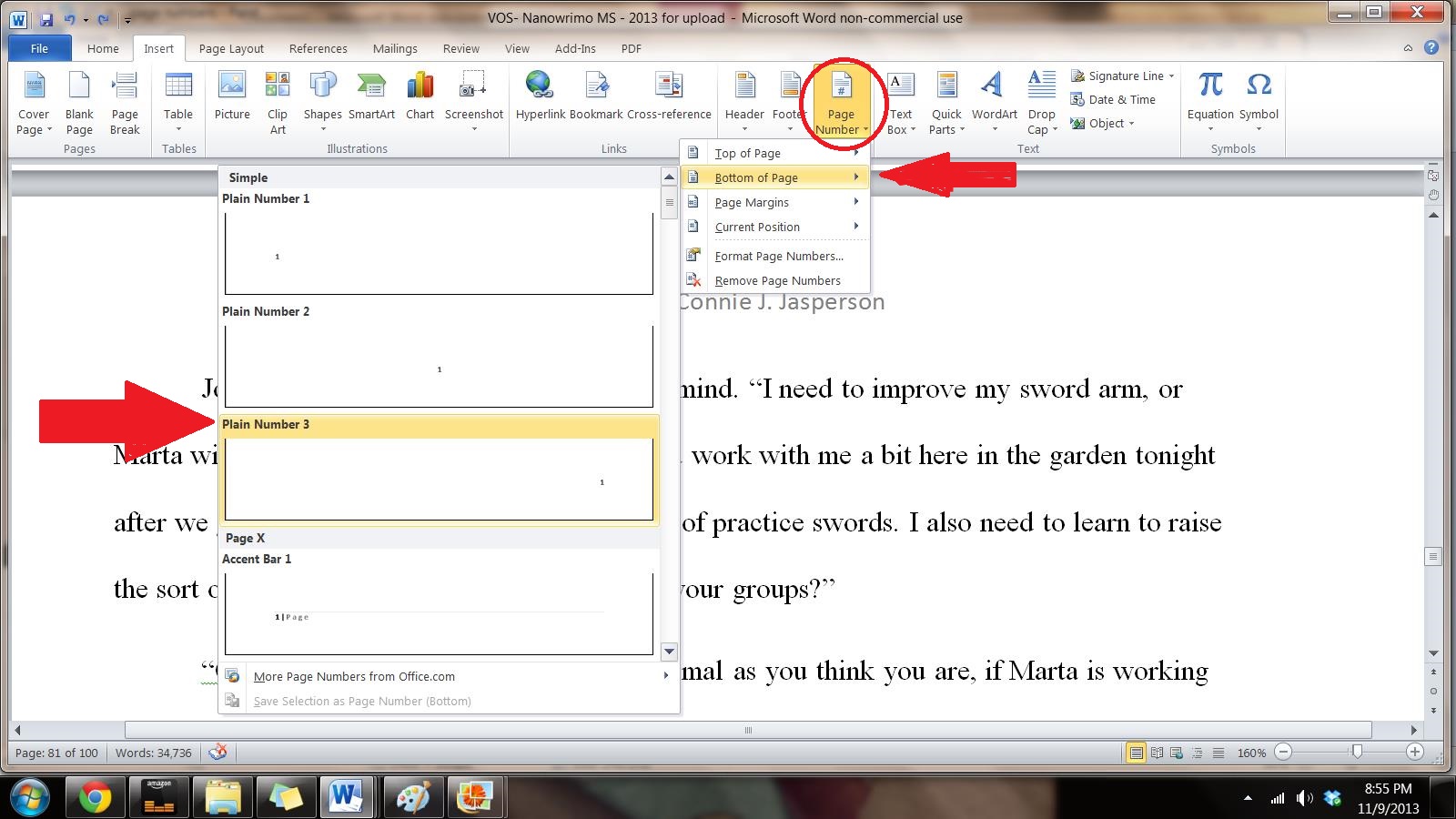
We begin by opening the “insert” tab, and clicking on “page number.”  This opens up a new menu. We add the page numbers using this menu.
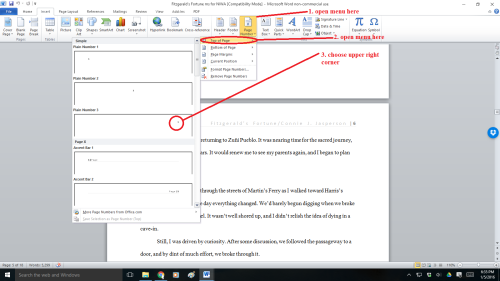
Headers and Page numbers prnt sc 2

You will insert the Title of the Book and Your Author Name  just before the page number, so it will look neat and be aligned to the right. You can do this on the page number tab.

Sometimes, a publisher will specify that the first (title) page have no header or page number, but they want the header and page numbers to begin on page two.
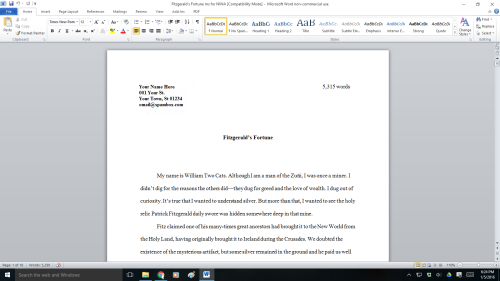
Headers and Page numbers prnt sc 1

To make the page numbers begin on page two:

  1. Click anywhere in the document.
  2. On the Page Layout tab, click the Page Setup Dialog Box Launcher, and
  3. then click the Layout tab.
  4. Under Headers and footers, select the Different first page check box, and then click OK.
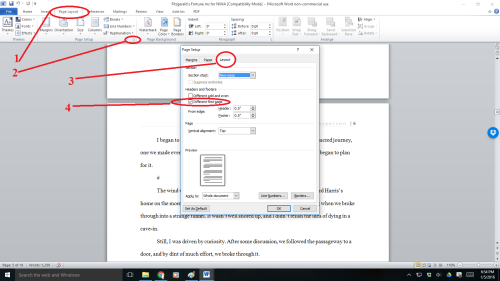
Headers and Page numbers prnt sc 3

Now your manuscript:

  1. is aligned left
  2. has 1 in. margins
  3. is double-spaced
  4. has formatted indented paragraphs
  5. The header contains title and author name and page numbers aligned right
  6. The first page contains your mailing address and contact information in upper left hand corner

For more on the subject of getting a manuscript ready for submission, check out my post of July 24, 2015, How to format your manuscript for submission.

43 Comments

Filed under Publishing, Self Publishing, writing

Formatting or The Shape of the Beast

Anne_Anderson05 - Beauty sat down to dinner with the Beast illustration PDArt - Wikimedia CommonsThis is the 2nd post in the series on using Microsoft WORD, “WORD—A Shifty Beast”.  The first post covered naming files and version control.  This post focuses on using the tools WORD gives you to format paragraphs and line spacing, making your manuscript ready for submission to an editor.

Often, an inexperienced author will submit a manuscript rife with the most bizarre formatting. He is terribly surprised and hurt when it is rejected and returned with a bland form letter that tells him nothing of why it was not acceptable. Rejections are rarely returned with an explanation of why, so the author is left to guess what they did wrong.

Most editors don’t have time to deal with badly formatted manuscripts and these submissions are not even considered.  All agents, editors and publishing companies have specific, standardized formatting they want you to use, and these guidelines are posted on their websites.

For the most part this formatting is basically the same from company to company, so once you know what the industry standard is, it’s easy to make your manuscript submission-ready, at least in the area of formatting.

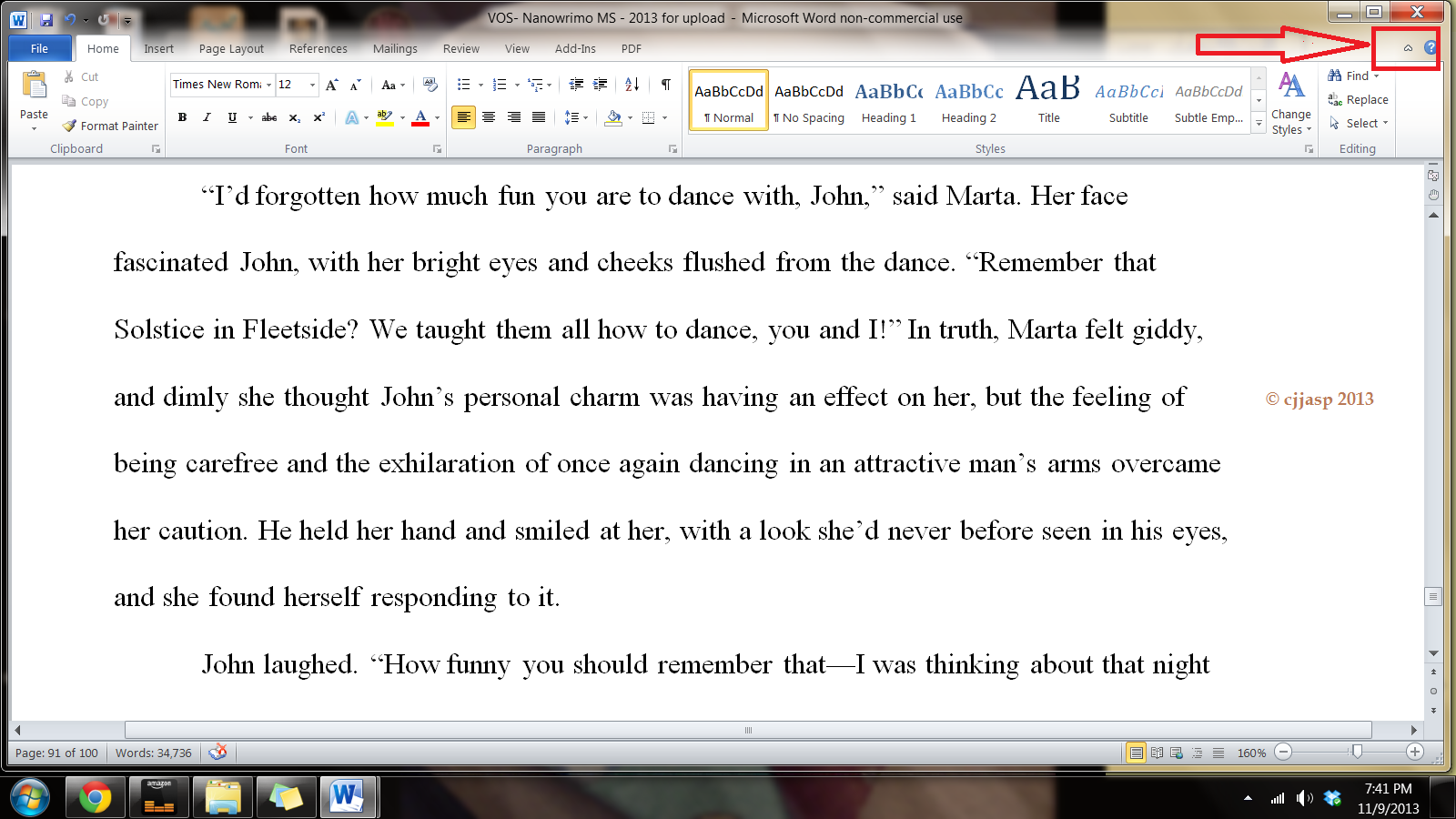
First of all, running across the top of the page is something called the ribbon, and this is your toolbox. Everything you need to create a manuscript is right there, waiting for you to learn to use it. On the right hand side, by the question mark is a tiny arrow for expanding or hiding the ribbon – and we are going to expand it so we have access to all the tools we will need.

Ribbon 2 - formatting for editors and submissions

First, we must select the font. Microsoft WORD has many fancy fonts you can choose from and also has many sizes.

You don’t want fancy.

Stick with the industry standard fonts: Times New Roman or Courier in 10, 11 or 12 pt.  Most say .11 is fine – for me, in a printout .10 is too small for my elderly eyes, I prefer .12.

209px-Serif_and_sans-serif_03.svg

These are called ‘Serif’ fonts, because they have little extensions that make them easier to read when in a wall of words.

To change your fonts, open your manuscript document, and Click on the tab marked ‘Home’.  In the upper right-hand corner of the ribbon across the top of the page in the editing group, click:

select> select all. This will highlight the entire manuscript.

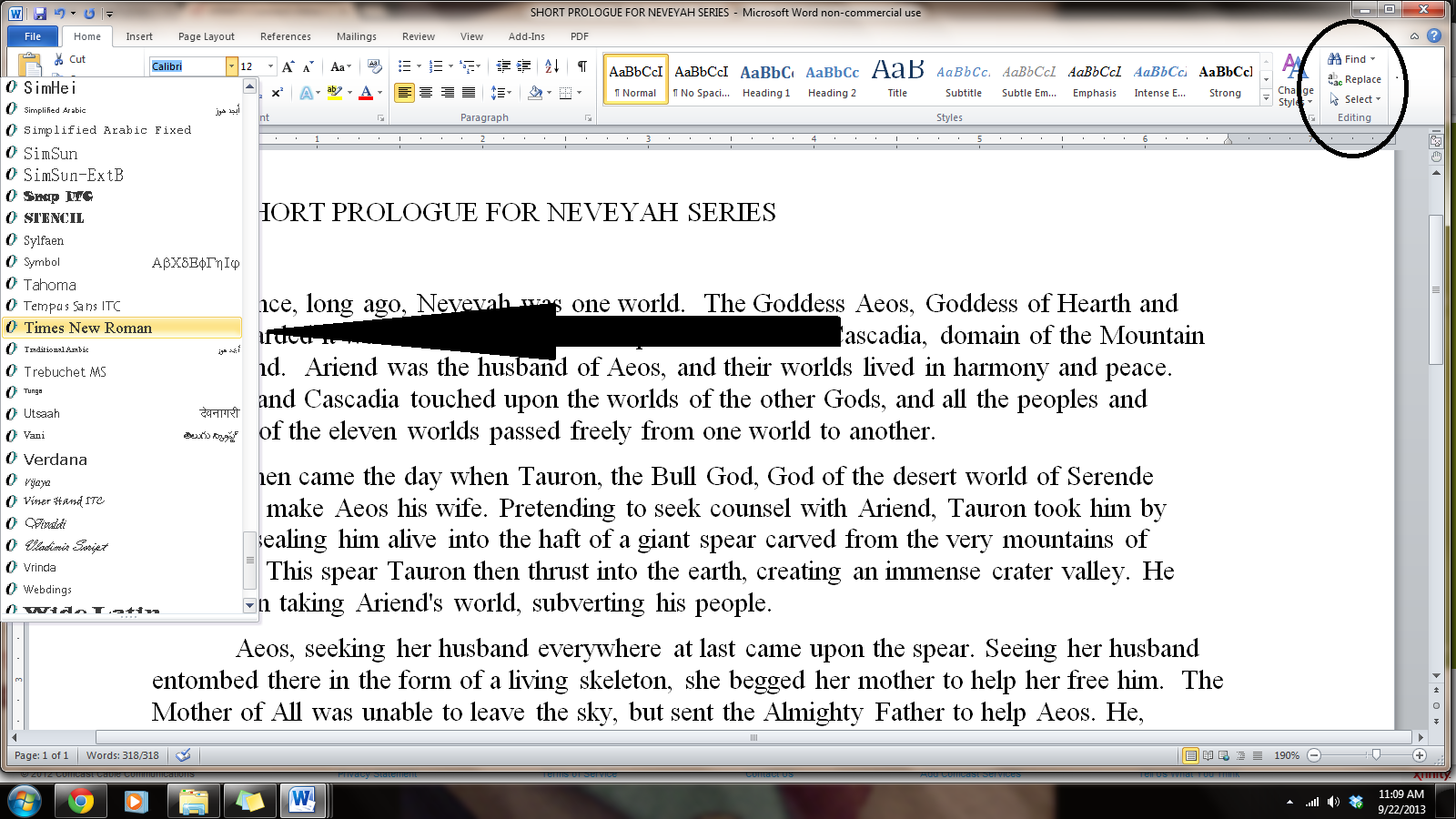
With the ms still highlighted, go to the font group, on the left-hand end of the ribbon. The default font, or predesigned value or setting, will probably say ‘Calibri (Body)’ and the size will be .11.

fonts post 2 of word series

You can change this by clicking on the menu and accessing the menu. Scroll down to Times New Roman, as it is the easiest on the eyes. Click on that and the font for the entire ms will be that font. Any errors can be undone by clicking the back-arrow.  Once you are satisfied with your changes, click save.

Now we are going to format our paragraphs and line spacing. Standard manuscript format means margins of 1 inch all the way around; indented paragraphs; double-spaced text. Do not justify the text. In justified text, the spaces between words, and, to a far lesser extent, between glyphs or letters (known as “tracking”), are stretched or sometimes compressed in order to make the text align with both the left and right margins. This gives you straight margins on both sides, but this is not the time or place for this type of alignment.

Do NOT ever use the tab key or the space bar to indent your paragraphs. You have no idea what a crapped-up mess that makes out of a manuscript. (That’s editor-speak for a stinking disaster.)  You may have to go in and remove these tabs by hand and it’s a tedious job, but do it now, if you have been using the tab key.

Instead of the tab key, a professional author uses the simple formatting tool:

Locating the formatting tool:

The ribbon- formatting tool

Still on the home tab, look in the group labeled ‘Paragraph’. On the lower right-hand side of that group is a small grey square. Click on it .  A pop-out menu will appear, and this is where you format your paragraphs.

  1. On the indents and spacing tab of the menu: Use standard alignment, align LEFT. The reason we use this format is we are not looking at a finished product here.  We are looking at a rough draft that will be sliced, diced and otherwise mutilated many times before we get to the final product.

The picture below has it all clearly marked out:

paragraph formatting for editors and submissions

1.  Indentation: leave that alone or reset both numbers to ‘0’ if you have inadvertently altered it.

2.  Where it says ‘Special’: on drop-down menu select ‘first line’. On the ‘By’ menu, select ‘0.5’

3. ‘Spacing’: set both before and after to ‘0’.

4. ‘Line Spacing’: set to ‘double’

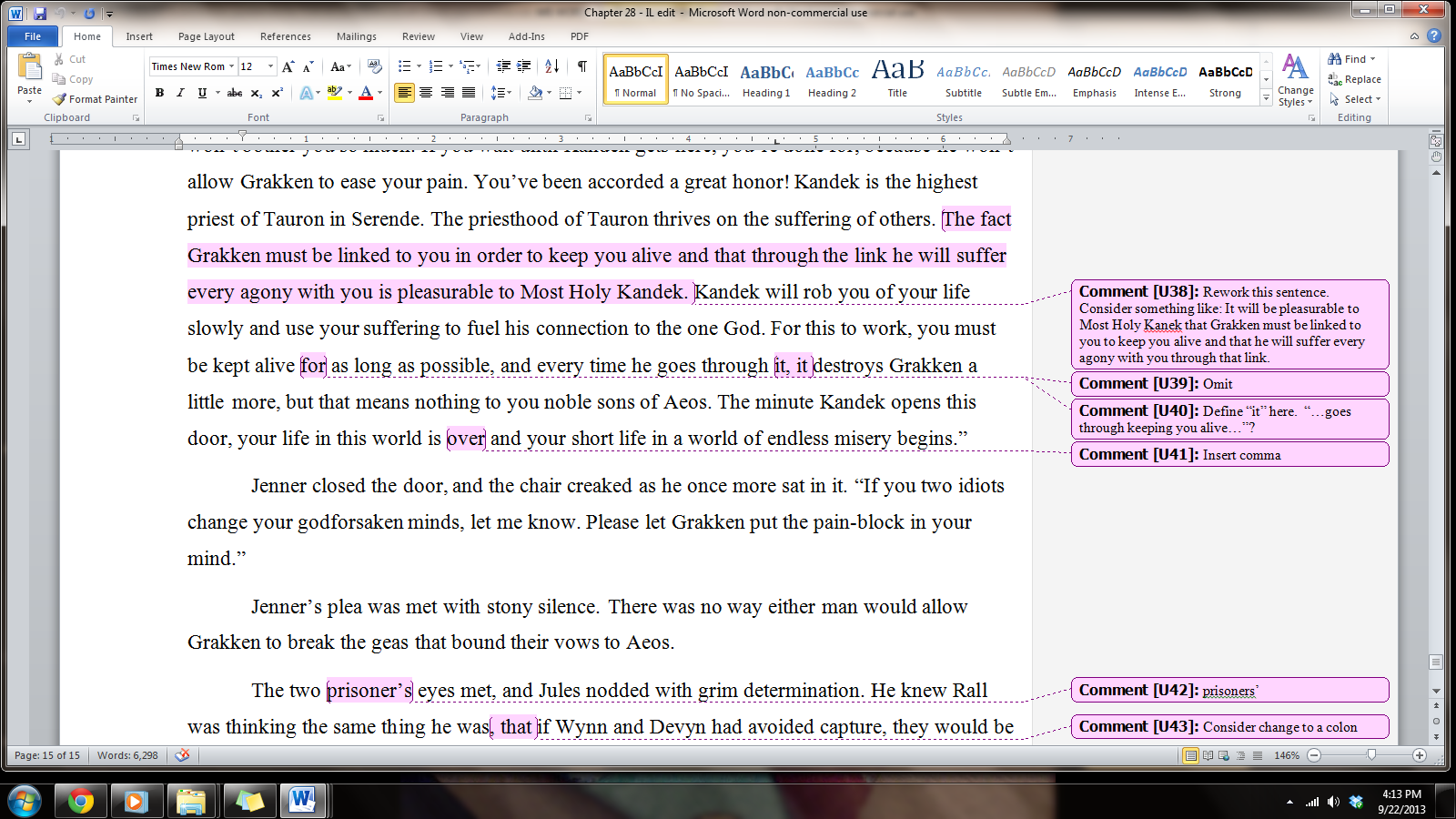
The editor needs to receive his version double-spaced so he can insert comments as needed in the reviewing pane, which will be on the right side of the page when you receive your work back for revisions. Having it double-spaced allows for longer comments.

doublespaced, aligned lft with comments prnt scrn for lirf

Now we need to make the “Header.”  This is the heading at the top of each page of a word-processed or faxed document, usually automatically inserted and, in this case, consisting of the title of the book and your name.

header

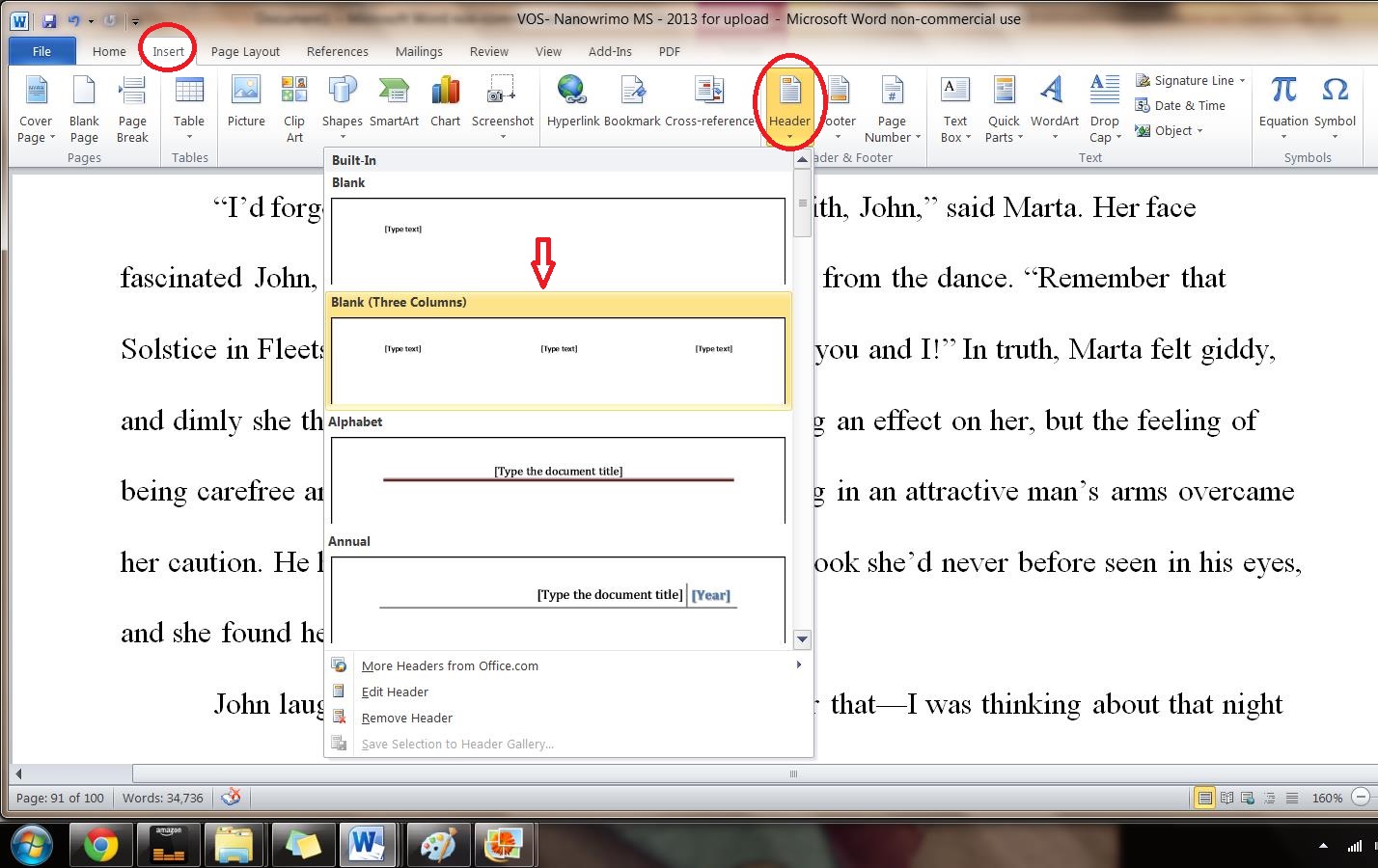
We insert this by opening the “insert” tab, and clicking on “header.”  This opens up a new menu:

 header menu

Next we add the page numbers. We put these at the bottom right of the page, using this menu:

page number

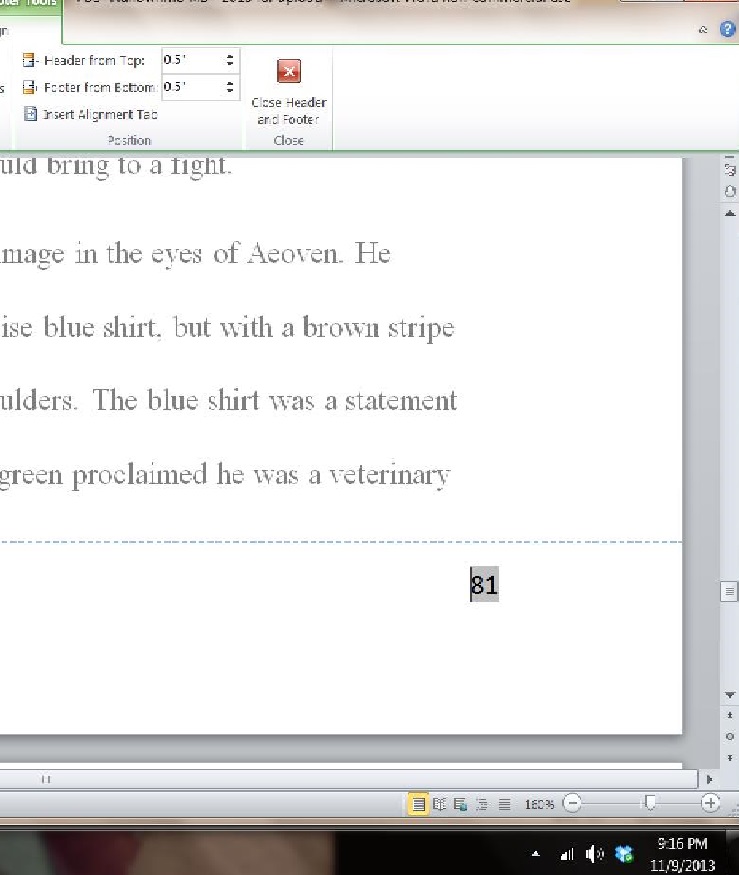
This is how it looks:

footer page number

SO once we have all these things done, we will have a manuscript that looks like this:

Full ms ready for submission

This manuscript is submission ready, and is:

  1. Aligned left
  2. Has 1 in. margins
  3. Is double-spaced
  4. Has indented paragraphs
  5. Header contains title and author name
  6. Footer has page number
  7. First page contains the author’s mailing address and contact information in upper left hand corner

This may seem like overkill to you, but I assure you, if you are really serious about submitting your work to agents, editors, or publishers, it must be in as professional a format as is possible.

One fun way to become more fluent with WORD is to open a new document, and save it as “WORD practice file”

Type a paragraph, and then go through the above steps, practicing formatting your work.  Use this document to get to know where everything is on the ribbon, and keep playing with it until you have developed your self-confidence on a document that won’t matter if you mess it up.  It’s actually kind of fun, seeing what options WORD has for making pretty documents as well as simple ones.

Just don’t get too fancy with formatting your novel before you submit it to an editor because no matter how pretty you make that manuscript, if it doesn’t follow the submission guidelines for the place you are submitting it, you have simply wasted your time.

The next post in this series will examine the review tab, and take us through the editing process, showing you how your editor uses WORD during the editing process to guide you to a better manuscript, and what your editor expects from you when you send back revisions.

Ohh…the agony….

6 Comments

Filed under Adventure, Books, Fantasy, Humor, Literature, Uncategorized, writer, writing