Tag Archives: formatting paragraphs

Submitting to Contests and Anthologies Part 2 #amwriting

We are continuing our series on submitting short works to contests, anthologies, and magazines. Today’s focus is on contests.
WritingCraft_short-story-formattingFor the most part, the requirements are basically the same from contest to contest, with minor differences. Most contests charge a submission fee but have a cash prize if your work is chosen. It doesn’t matter how brilliant your story is; if you don’t follow their guidelines for submission, you will have wasted your money. Non-conforming work will not be read, so follow their guidelines!

To make sure your work conforms to the intended recipient’s requirements, go to the contest website and read the standards they have laid out.

You must get your paragraphs and line spacing right, so you must know how to use the tools that come with your word processing program. These handy tools exist to make your documents look as professional as possible.

First, you must open the toolbox.

Open your document and make sure you are on the home tab. I use MS Word, but most word processing programs (Open Office, Google Docs) follow a similar process as my program does. Running across the top of the page is the ribbon, which is your toolbox.

Everything you need to create a manuscript is there, waiting for you to learn to use it. A tiny little v in the far right-hand corner is the arrow for expanding or hiding the ribbon. We will expand the ribbon, giving us access to all the necessary tools.
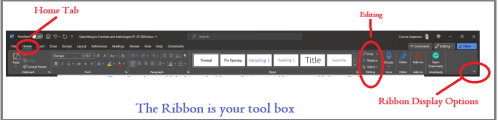
MSWord_ribbon_toolsLIRF01182024

I use dark mode for all my work as light mode hurts my eyes. That is why the above screenshot of my ribbon is dark when yours might be shades of white, blue, and gray. You can discover more about “dark mode” here: Using Dark Mode in Windows 11 | Windows Learning Center (microsoft.com)

Now, we must select the font. As I said before, I use Microsoft WORD. Like every other word-processing program, it has many fancy fonts to choose from and a variety of sizes.

Lucky Coffee CupYou don’t want fancy. Stick with the industry standard fonts: Times New Roman (or rarely Courier) in 12 pt. These are called ‘Serif’ fonts and have little extensions that make letters easier to read when strung together to form words.

  • Check the contest page for their guidelines. You will find they likely want submissions formatted in Times or Times New Roman .12 font size.

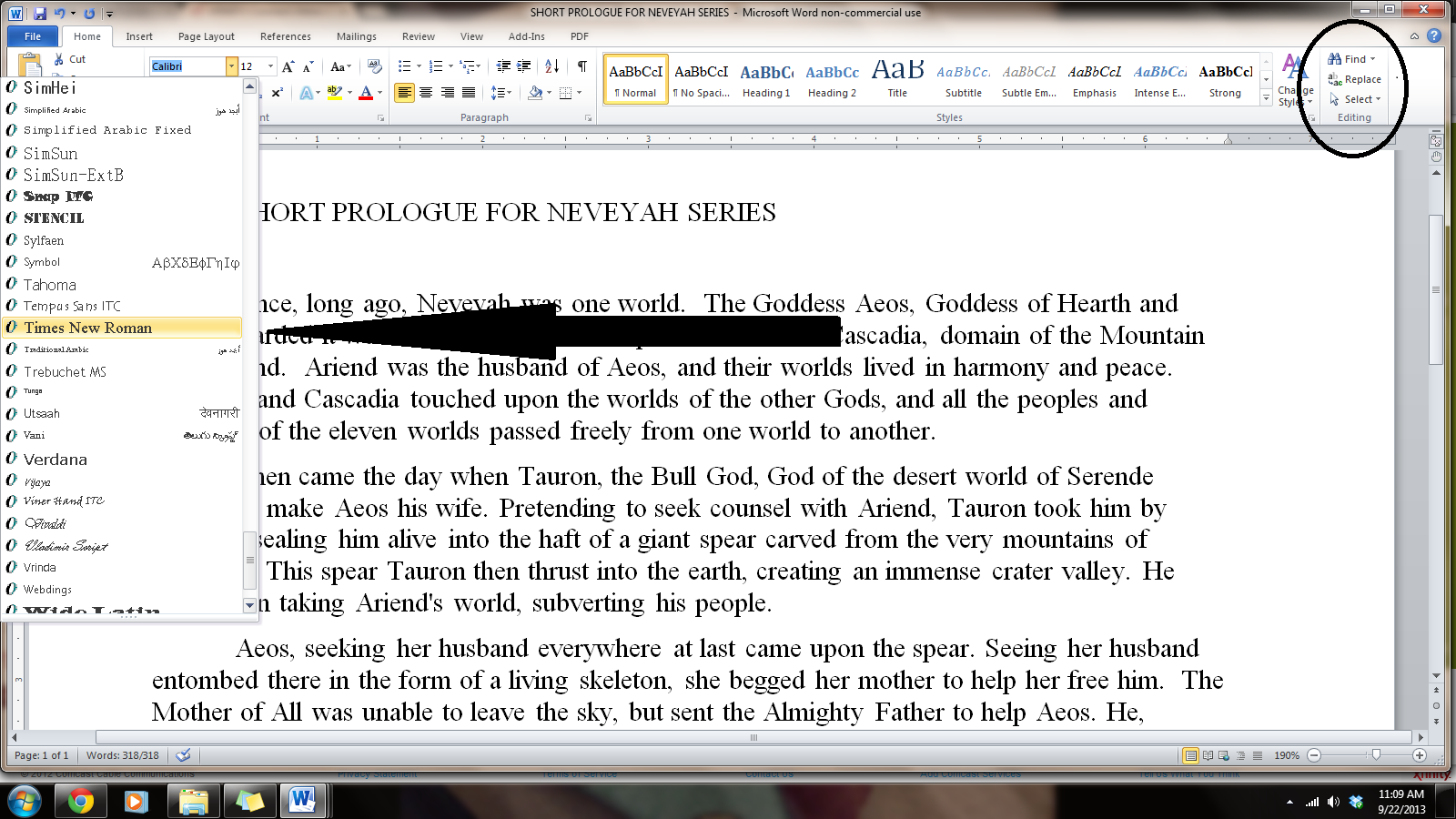
If you are using MS WORD, here are a few simple instructions: to change your fonts, open your manuscript document, and Click on the tab marked ‘Home.’  In the upper right-hand corner of the ribbon, across the top of the page, is the “Editing” group, located at the right of the Styles group. Note: be sure you have Editing and NOT Editor. (The Editor menu has different functions that we’ll cover another time.)

select> select all. This will highlight the entire manuscript.

With the manuscript still highlighted, go to the font group on the left-hand end of the ribbon. The default font, or predesigned setting, will probably say ‘Calibri (Body)’ and the size will be .11. Scroll down to Times New Roman and click on it to change the font for the entire manuscript.

  • If you have clicked on the wrong font, it can be undone by clicking the back arrow (upper left-hand corner).

Once you are satisfied with your changes, click save.

Now, we are going to format our paragraphs and line spacing. Editors, publishers, and contests want their copies double-spaced so they can insert comments in the reviewing panel as needed. Having it double-spaced allows for longer comments and is easier for an editor to read.

NEVER use the tab key or the space bar to indent your paragraphs. Too many extra spaces in an electronic document cause the formatting to fail when converted to the various electronic publishing formats.

  • Keep extra spaces to a minimum—use only one space between sentences!
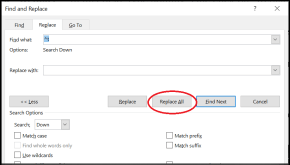
remove_tabsLIRF01202024To remove tabs from a manuscript in MS Word or most other word-processing programs, open the “Find” box (right side of the ribbon on the home tab). In the “Find” field, type in ^t. (Caret + lowercase t) (press the alt key 94 to make ^ and key the t). This only works if you have a ten-key (number pad) at the right side of your keyboard. ^t.

Then click “Replace.” In this field, type nothing. Click once on “Replace all,” and it will remove every tab. (If you have no number pad, you must do this by hand, using the backspace to remove the tabs from EVERY paragraph.)

That will leave you with no indents whatsoever. Your manuscript will temporarily look like a wall of words, but you will resolve that.

Once the tabs are all removed, use the following instructions to format paragraphs.
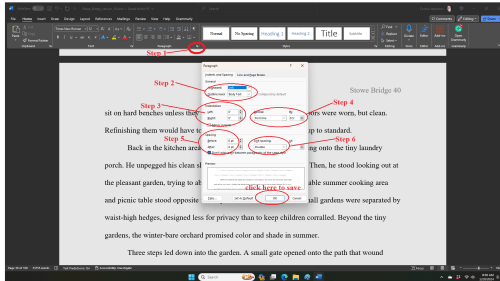
formatting_paragraphs_MSWordLIRF01202024FIRST: SELECT ALL. This will highlight your entire manuscript.

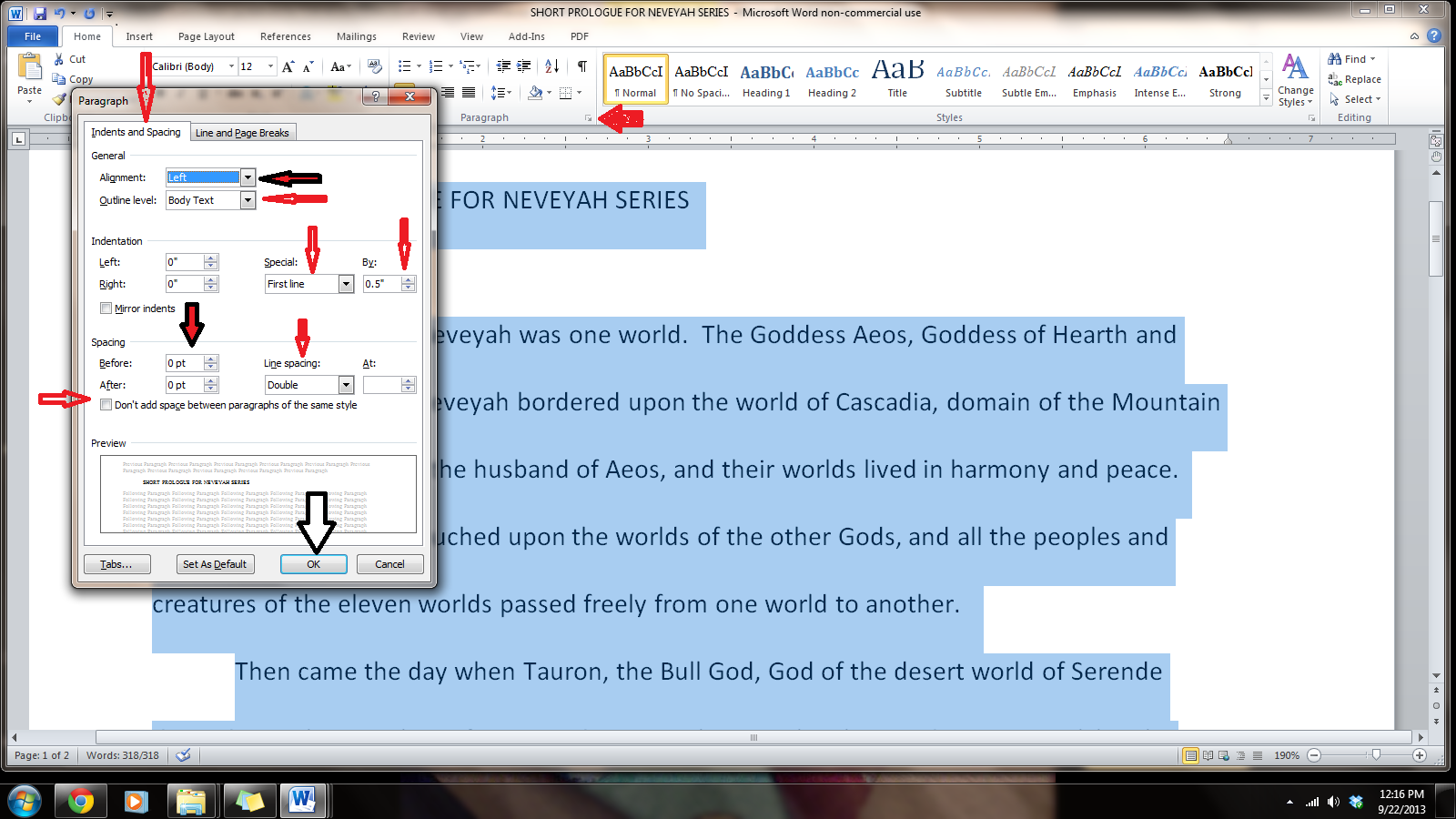
Step 1: On the Home tab, look in the group labeled ‘Paragraph.’ On the lower right-hand side of that group is a small grey square. Click on it. A pop-out menu will appear, which is where you format your paragraphs.

Step 2: On the indents and spacing menu: Use standard alignment align LEFT. We use this format because we are not looking at a finished product here. Do not justify the text. In justified text, the spaces between words and letters (known as “tracking”) are stretched or compressed. Justified text gives you straight margins on both sides, but this type of alignment only comes into play when a manuscript is published.

Step 3: Indentation: leave that alone or reset both numbers to ‘0’ if you have inadvertently altered it.

Step 4: Where it says ‘Special,’ select ‘first line on the dropdown menu.’ On the ‘By’ menu, select ‘0.5.’ (Some publishers specify a different number, 0.3 or 0.2, but 0.5 is standard.)

Step 5: ‘Spacing’: set both before and after to ‘0.’

Step 6: ‘Line Spacing’: set to ‘double.’

To summarize, the standard paragraph format has:

  • marginsof 1 inch all the way around
  • indented paragraphswith no extra space between
  • double-spacedtext
  • Align Left. This is critical.

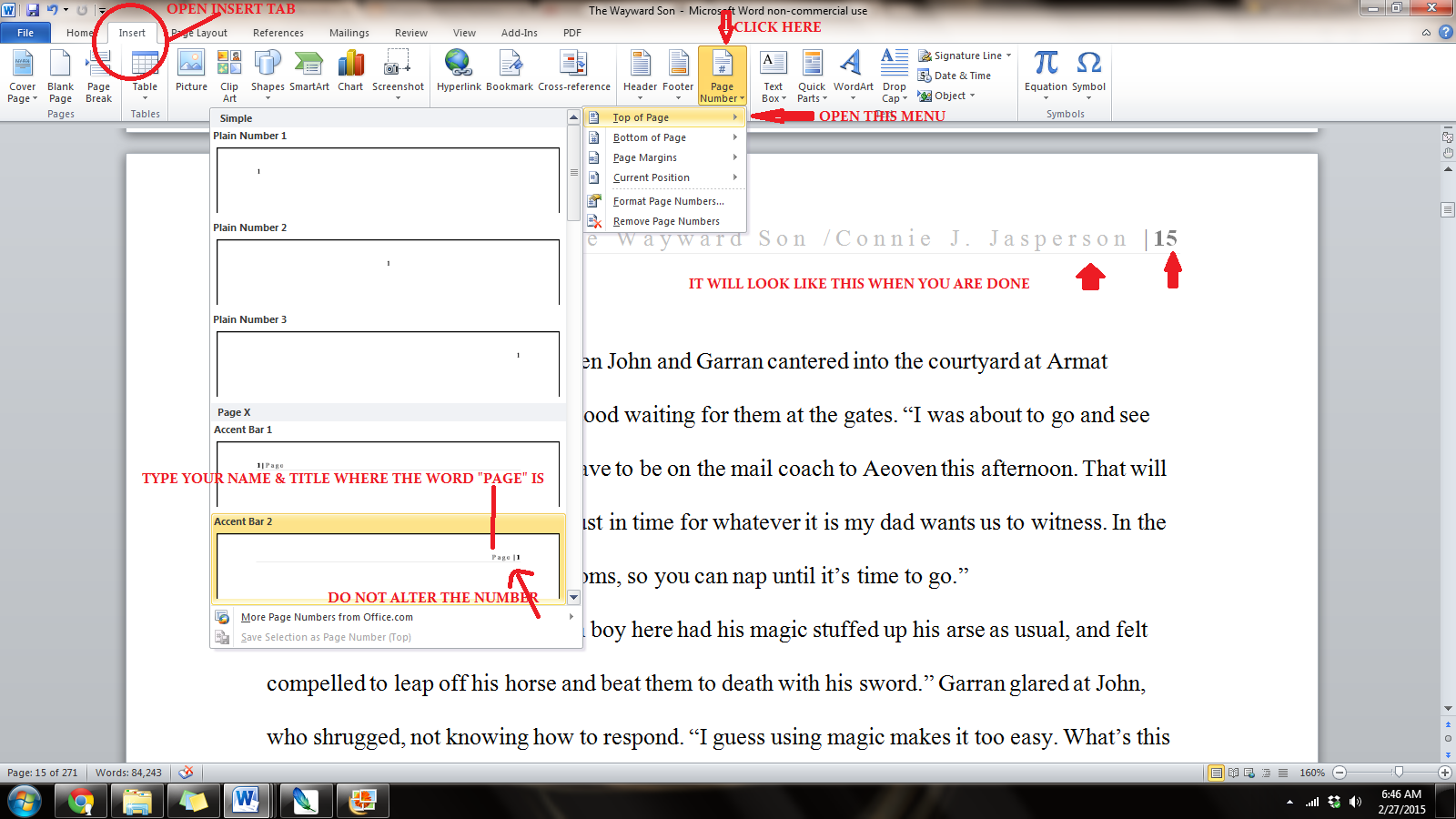
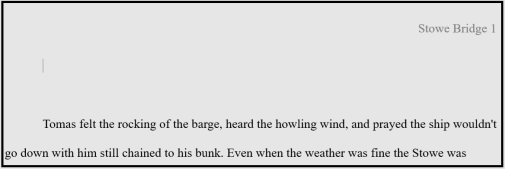
Next, we want to add page numbers. Open the “insert” tab and click on “page number.” This opens a new menu. We will add the page numbers using the small dropdown menu.

  • Choose top of page, plain number, far right hand. You can add the title there too.
page number

NOTE: Most contests do NOT want you to insert identifying information, such as your name, on the manuscript you submit. The email and submissions portal will have your manuscript and title linked to your personal information, so don’t worry.

Editors and readers at contests receive an overwhelming number of manuscripts. They don’t have time to deal with authors who can’t be bothered to conform to the submission guidelines.

On Wednesday, we’ll talk about headers and formatting to submit to publishers of anthologies and magazines.

2 Comments

Filed under writing

Formatting Short Stories for Submission #amwriting

If you are serious about writing and submitting short stories, you must learn to use the features that come with your word processing program.

Publishers have specific, standardized formatting they want you to use, and these guidelines are posted on their websites. When a call for submissions goes out, their editors will have no time to deal with badly formatted manuscripts.

If you can’t be bothered to follow their guidelines, they won’t be bothered to read your work.

For the most part, the requirements are basically the same from company to company with minor differences. To make sure your work conforms to the intended recipient’s requirements go to the publication’s website and read the standards they have laid out.

William Shunn has established a standard format that is acceptable to most publishers. All of the following steps will come into play when you make your document look like his. The link for his website where the example can be viewed is here: William Shunn: Proper Manuscript Format : Short Story Format

To get your paragraphs and line spacing right, you need to know a few simple tricks for using your word processing program. These tools come with the software and are there to make your documents look as professional as is possible.

First, you must open the toolbox.

Open your document. I use Word, but most word processing programs (Open Office, Google Docs) follow a similar process as my program does. Running across the top of the page is something called the ribbon, and this is your toolbox. Everything you need to create a manuscript is right there, waiting for you to learn to use it. On the right-hand side, by the question mark is a tiny arrow for expanding or hiding the ribbon – and we are going to expand it so we have access to all the tools we will need.

Now we must select the font. As I said before, I use Microsoft WORD, and like every other word-processing program, it has many fancy fonts you can choose from and a variety of sizes.

You don’t want fancy. Stick with the industry standard fonts: Times New Roman or Courier in 12 pt. These are called ‘Serif’ fonts and have little extensions that make them easier to read when in a wall of words.

If you are using MS WORD, here are a few simple instructions: to change your fonts, open your manuscript document, and Click on the tab marked ‘Home.’  In the upper right-hand corner of the ribbon across the top of the page in the editing group, click:

select> select all. This will highlight the entire manuscript.

With the ms still highlighted, go to the font group, on the left-hand end of the ribbon. The default font, or predesigned setting, will probably say ‘Calibri (Body)’ and the size will be .11.

You can change this by opening the menu. Scroll down to Times New Roman or Courier (depending on the publisher’s guidelines). Click on that, and the font for the entire ms will be that font. If you have clicked on the wrong font, it can be undone by clicking the back-arrow (upper left hand corner).  Once you are satisfied with your changes, click save.

Now we are going to format our paragraphs and line spacing. Editors and publishers want their copies double-spaced so they can insert comments as needed in the reviewing pane, which will be on the right side of the page when you receive your work back for revisions. Having it double-spaced allows for longer comments and is easier for an editor to read.

Do NOT ever use the tab key or the space bar to indent your paragraphs.

You have no idea what a mess that makes out of an electronic manuscript. Too many extra spaces in an electronic document cause the formatting to fail when converted to electronic publishing formats (mobi, epub, etc.) so keep extra spaces to a minimum. Most publishers require manuscripts to be submitted electronically, so you will have to go in and remove these tabs by hand, and it’s a tedious job, but do it now, if you have been using the tab key.

You can format the paragraphs by either opening the home tab and choosing ‘normal’ from the styles tab on the ribbon. This is simplest, but what is ‘normal’ on your software may not be what your publisher requires. The best way is to format by using the formatting tool, which requires 6 steps, detailed below.

Step 1: Once again, select all to highlight the entire document. Then, on the home tab, look in the group labeled ‘Paragraph.’ On the lower right-hand side of that group is a small grey square. Click on it.  A pop-out menu will appear, and this is where you format your paragraphs.

Step 2: On the indents and spacing tab of the menu: Use standard alignment, align LEFT. The reason we use this format is we are not looking at a finished product here. We are looking at a rough draft that will be sliced, diced, and otherwise mutilated many times before we get to the final product.

Step 3: Indentation: leave that alone or reset both numbers to ‘0’ if you have inadvertently altered it.

Step 4: Where it says ‘Special’: on drop-down menu select ‘first line.’ On the ‘By’ menu, select ‘0.5.’ (Some publishers will specify a different number, 0.3 or 0.2, but 0.5 is standard.)

Step 5: ‘Spacing’: set both before and after to ‘0.’

Step 6: ‘Line Spacing’: set to ‘double.’

To summarize, standard paragraph format has:

  • margins of 1 inch all the way around
  • indented paragraphs with no extra space between
  • double-spaced text
  • Align Left. This is critical.

Do not justify the text. In justified text, the spaces between words, and letters (known as “tracking”) are stretched or compressed. Justified text aligns with both the left and right margins. It gives you straight margins on both sides, but this type of alignment only comes into play when a manuscript is published, and at that point, the publisher will handle the formatting.

Now we need to make the “Header.”  This is the heading at the top of each page of a word-processed or faxed document, consisting of the title and your name, followed by the page number.

Many publishers and editors want this because when they receive a print copy, each page is clearly marked with your name and/or the title of the book as well as the page number. Remember, they want print copies UNBOUND. Accidents happen: if the printout of the manuscript accidentally falls off a desk, it can easily be reassembled, and the editor will always know that you wrote that brilliant work.

We insert this by opening the “insert” tab, and clicking on “page number.”  This opens a new menu. We add the page numbers using the small dropdown menu. We insert our title and author name just before the page number, and that will be our header.

This is how the ribbon and menus look:

Now you know how to use your software to make your manuscript submission ready. You have changed the font to Times New Roman or Courier .12 font and  the body of the manuscript is

  1. Aligned left
  2. 1 in. margins
  3. Double-spaced
  4. Has formatted indented paragraphs
  5. Header contains title and author name
  6. The first page contains the author’s mailing address and contact information in upper left hand corner

This may seem like overkill to you, but I assure you, if you are serious about submitting your work to agents, editors, or publishers, it must be in as professional a format as is possible.

I hope these instructions will help you find the way to format properly in other word-processing programs. MS WORD is the one I use because it is easy and has all the tools I need. Just don’t get too fancy with formatting your work before you submit it. No matter how pretty you make that manuscript, if it doesn’t follow the submission guidelines for the place you are submitting it, you have wasted your time.

18 Comments

Filed under writing

Formatting a submission-ready manuscript

Félix_Vallotton_Nature_morte_à_l_assiette_bleue_1922 Félix Vallotton [Public domain], via Wikimedia CommonsMost editors have a great deal of work in their in-boxes, and don’t have time to deal with badly formatted manuscripts and these submissions are not even considered.  All agents, editors and publishing companies have specific, standardized formatting they want you to use, and these guidelines are posted on their websites.

If you intend to go the traditional route and submit your manuscript to a Big Publisher such as TOR Forge, you will want to make sure your work is submission-ready, and that it conforms to the exact standards they have laid out on their website.

But what makes a manuscript submission ready? TOR Forge clearly says: Standard manuscript format means margins of at least 1 inch all the way around; indented paragraphs; double-spaced text; and Times New Roman in 12 pitch. Please use one side of the page only. Do not justify the text. Do not bind the manuscript in any way. Make sure the header of the ms. includes your name and/or the title of the book as well as the page number (on every page).

Publishers who accept electronic submissions will most likely want them formatted similarly. For the most part this formatting is basically the same from company to company, so once you know what the industry standard is, it’s easy to make your manuscript submission-ready, at least in the area of formatting.

First of all, running across the top of the page is something called the ribbon, and this is your toolbox. Everything you need to create a manuscript is right there, waiting for you to learn to use it. On the right hand side, by the question mark is a tiny arrow for expanding or hiding the ribbon – and we are going to expand it so we have access to all the tools we will need.

First, we must select the font. I use Microsoft WORD, and like every other word-processing program, it has many fancy fonts you can choose from and also has many sizes.

You don’t want fancy. Stick with the industry standard fonts: Times New Roman or Courier in 12 pt.  Most say .11 is fine – for me, in a printout .10 is too small for my elderly eyes, I prefer .12. These are called ‘Serif’ fonts, because they have little extensions that make them easier to read when in a wall of words.

If you are using MS WORD, here are a few simple instructions: to change your fonts, open your manuscript document, and Click on the tab marked ‘Home’.  In the upper right-hand corner of the ribbon across the top of the page in the editing group, click:

select> select all. This will highlight the entire manuscript.

With the ms still highlighted, go to the font group, on the left-hand end of the ribbon. The default font, or predesigned value or setting, will probably say ‘Calibri (Body)’ and the size will be .11.

You can change this by clicking on the menu and accessing the menu. Scroll down to Times New Roman, as it is the easiest on the eyes. Click on that and the font for the entire ms will be that font. Any errors can be undone by clicking the back-arrow.  Once you are satisfied with your changes, click save.

fonts post 2 of word series


Now we are going to format our paragraphs and line spacing. Editors and publishers want their copies double-spaced so they can insert comments as needed in the reviewing pane, which will be on the right side of the page when you receive your work back for revisions. Having it double-spaced allows for longer comments, and makes it easier for reading.

Remember, TOR Forge says they want a standard manuscript formatted with margins of 1 inch all the way around; indented paragraphs; double-spaced text. Do not justify the text. In justified text, the spaces between words, and, to a far lesser extent, between glyphs or letters (known as “tracking”), are stretched or sometimes compressed in order to make the text align with both the left and right margins. This gives you straight margins on both sides, but this is not the time or place for this type of alignment.

I’ve said this before, and I will say it again: Do NOT ever use the tab key or the space bar to indent your paragraphs. You have no idea what a crapped up mess that makes out of a manuscript.  You will have to go in and remove these tabs by hand and it’s a tedious job, but do it now, if you have been using the tab key.

Instead of the tab key, a professional author who is writing in MS WORD uses the simple formatting tool:

On the home tab, look in the group labeled ‘Paragraph’. On the lower right-hand side of that group is a small grey square. Click on it .  A pop-out menu will appear, and this is where you format your paragraphs.

  1. On the indents and spacing tab of the menu: Use standard alignment, align LEFT. The reason we use this format is we are not looking at a finished product here. We are looking at a rough draft that will be sliced, diced and otherwise mutilated many times before we get to the final product.

The picture below has it all clearly marked out:

paragraphs post 2 pof word series

  1. Indentation: leave that alone or reset both numbers to ‘0’ if you have inadvertently altered it.
  2. Where it says ‘Special’: on drop-down menu select ‘first line’. On the ‘By’ menu, select ‘0.5’
  3. ‘Spacing’: set both before and after to ‘0’.
  4. ‘Line Spacing’: set to ‘double’

Now we need to make the “Header.”  This is the heading at the top of each page of a word-processed or faxed document, usually automatically inserted and, in this case, consisting of the title of the book and your name. Publishers and editors want this because when they receive a print copy, each page is clearly marked with your name and/or the title of the book as well as the page number. Remember, they want it UNBOUND. Accidents happen: if the ms accidentally falls off a desk, it can easily be reassembled and the editor will always know that brilliant work was written by you.

We insert this by opening the “insert” tab, and clicking on “page number.”  This opens up a new menu. We add the page numbers using this menu:

This is how it looks:header with page numbers

Now your manuscript is submission ready, and is

  1. Aligned left
  2. 1 in. margins
  3. Double-spaced
  4. Has indented paragraphs
  5. Header contains title and author name
  6. First page contains the author’s mailing address and contact information in upper left hand corner

This may seem like overkill to you, but I assure you, if you are really serious about submitting your work to agents, editors, or publishers, it must be in as professional a format as is possible.

I hope these instruction will help you find the way to format properly in other word-processing programs. MS WORD is most commonly used, and is the one I use, because it is easy and has all the tools I need. Just don’t get too fancy with formatting your novel before you submit it  because no matter how pretty you make that manuscript, if it doesn’t follow the submission guidelines for the place you are submitting it, you have wasted your time.

2 Comments

Filed under blogging, Books, Fantasy, Humor, Literature, Publishing, Self Publishing, WordPress, writer, writing